The PolyPop service allow you to connect to your installation of PolyPop via the websocket alert plugin and trigger alerts. To interact with PolyPop, you would add a PolyPop Action to your command. For information on configuring alerts, please see that page. To connect the service, you must download and install the Websocket plugin to your PolyPop installation by following the instructions below:
Basic Installation
-
Head to the websocket plugin’s release page: https://github.com/Jabbey92/PolyPopWebsocketPlugin/releases/latest
-
Scroll down to the bottom of the release, and expand the “Assets” tab, and download the PolyPopWebsocketPluginInstaller.exe file
-
Run the executable to install the plugin to PolyPop. The default installation path will be
C:\Program Files\PolyPop\UIX\Sources. -
Launch PolyPop, hit the ”+” button at the bottom of the Library box, and select WebSocket
-
In Mix It Up, head to the Services page, expand the PolyPop section, and click Connect
Advanced Installation
-
Head to the websocket plugin’s release page: https://github.com/Jabbey92/PolyPopWebsocketPlugin/releases/latest
-
Scroll down to the bottom of the release, and expand the “Assets” tab, and download the WebSocket.zip file
-
Navigate to your PolyPop installation folder -> UIX -> Sources. Typically the full folder path will be:
C:\Program Files\PolyPop\UIX\Sources -
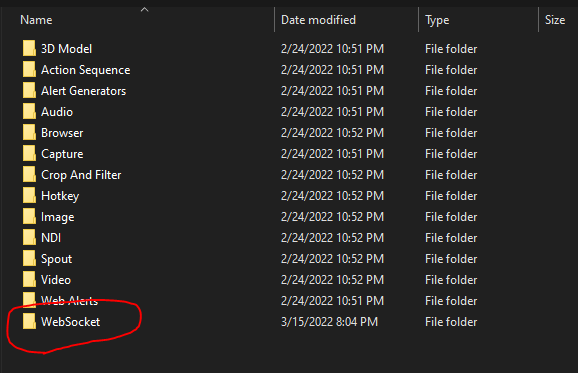
Open the WebSocket.zip file and copy the WebSocket folder out directly in to the Sources folder, making sure it does not create an extra WebSocket folder inside:
-
Launch PolyPop, hit the ”+” button at the bottom of the Library box, and select WebSocket
-
In Mix It Up, head to the Services page, expand the PolyPop section, and click Connect
PolyPop Action
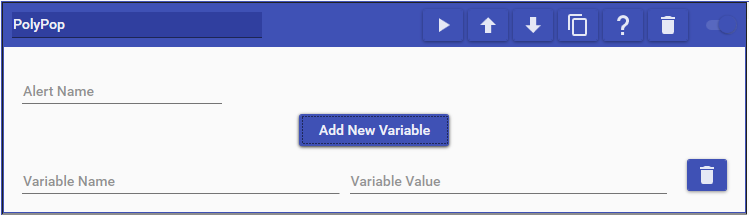
PolyPop actions allow you to trigger alerts for sources in your scenes. Simply specify the name of the alert you made and then add a variable for every piece of data you would like to send over for the alert.
Configuring Alerts
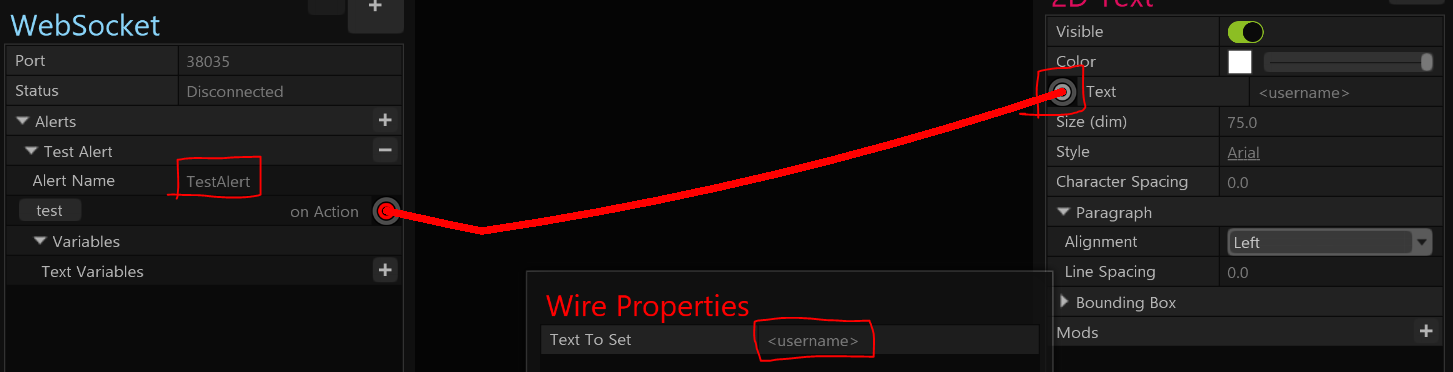
To configure an alert in PolyPop, you’ll use the following steps:
-
Click on the ”+” button on the Alerts expander to add a new alert.
-
Type in the name for the alert.
-
At the “on Action” section below the alert name, click on the button and drag the line over to any property you wish to change on a source.
-
When you connect it to a property, you will get a Wire Properties pop-up to specify what variable name you want to use when setting the text. For the variable name you must put < and > symbols around it. For example, “username” is incorrect and “<username>” is correct.
-
In Mix It Up, add a PolyPop action to your command. Set the Alert Name to the name of the alert, click on Add New Variable, type in the name of the variable without the < and > symbols, and then type in what text you want to set to that variable.
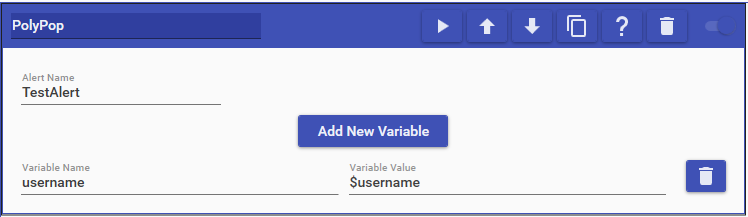
In this full example, we using the name of the user who ran the command ($username) to set as the value to our variable username in PolyPop.