• General
  • Getting Started
  • Getting Started
  • Tutorials
  • Preview Program
  • Uninstall
  • Accounts
  • FAQ
  • Platforms
  • Twitch
  • Twitch
  • Twitch Action
  • Twitch Channel Point Commands
  • Twitch Bits Commands
  • Twitch Custom Power Up Commands
  • YouTube
  • YouTube
  • YouTube Action
  • Kick
  • Kick
  • Kick Action
  • Kick Channel Point Commands
  • Kick Kicks Commands
  • Integrations
  • Amazon Polly
  • Crowd Control
  • Crowd Control
  • Crowd Control Commands
  • Discord
  • Discord
  • Discord Action
  • DonorDrive
  • Google Cloud TTS
  • IFTTT
  • IFTTT
  • IFTTT Action
  • JustGiving
  • Loupedeck
  • Lumia Stream
  • Lumia Stream
  • Lumia Stream Action
  • Meld Studio
  • Meld Studio
  • Meld Studio Action
  • Microsoft Azure Speech
  • mtion studio
  • mtion studio
  • mtion studio Action
  • OBS Studio
  • Patreon
  • PixelChat
  • PixelChat
  • Pixel Chat Action
  • PolyPop
  • PolyPop
  • PolyPop Action
  • Pulsoid
  • Rainmaker
  • ResponsiveVoice
  • SAMMI
  • SAMMI
  • SAMMI Action
  • Stream Avatars
  • Stream Deck
  • StreamElements
  • Streamlabs
  • Streamlabs Desktop
  • Streamlabs Desktop
  • Streamlabs Action
  • Streamloots
  • Streamloots
  • Streamloots Card Commands
  • Tiltify
  • TipeeeStream
  • TITS
  • TITS
  • Twitch Integrated Throwing Action
  • TreatStream
  • TTS.Monster
  • Twitter / X
  • Voicemod
  • Voicemod
  • Voicemod Action
  • VTS Pog
  • VTS Pog
  • VTS P.O.G. Action
  • VTube Studio
  • VTube Studio
  • VTube Studio Action
  • XSplit
  • Features
  • Commands
  • Commands
  • Chat Commands
  • Pre-Made Chat Commands
  • Event Commands
  • Timer Commands
  • Game Commands
  • Webhook Commands
  • Community Commands
  • Action Groups
  • Usage Requirements
  • Command History
  • Actions
  • Actions
  • Chat Action
  • Command Action
  • Conditional Action
  • Consumable Action
  • Counter Action
  • External Program Action
  • File Action
  • Game Queue Action
  • Group Action
  • Input Action
  • Moderation Action
  • Music Player Action
  • Overlay Action
  • Random Action
  • Repeat Action
  • Script Action
  • Serial Action
  • Sound Action
  • Special Identifier Action
  • Streaming Software Action
  • Text To Speech Action
  • Wait Action
  • Web Request Action
  • Overlays
  • Overlays
  • Overlay Widgets
  • Chat Widget
  • Custom Widget
  • End Credits Widget
  • Event List Widget
  • Game Queue Widget
  • Goal Widget
  • HTML Widget
  • Image Widget
  • Label Widget
  • Leaderboard Widget
  • Persistent Emote Effect Widget
  • Persistent Timer Widget
  • Poll Widget
  • Stream Boss Widget
  • Text Widget
  • Video Widget
  • Wheel Widget
  • YouTube Widget
  • Consumables
  • Consumables
  • Currency
  • Rank
  • Inventory
  • Stream Pass
  • Redemption Store
  • Chat
  • Users
  • Moderation
  • Game Queue
  • Giveaways
  • Quotes
  • Music Player
  • Statistics
  • Reference
  • Special Identifiers
  • Developer API
  • The Amazon Polly service connectivity allows you to connect your own AWS (Amazon Web Services) account to circumvent the rate limiting of the default usage of Amazon Polly with the Text To Speech Action.

    Usage of Amazon Polly for text to speech functionality is a paid service with AWS that Mix It Up directly covers, but there are limits to how much we can financially cover for usage of the service across all users. To balance that, we limit the use of Amazon Polly text to speech to one request every 5 minutes. Users are able to connect their own AWS accounts to remove this limitation, but all expenses for Amazon Polly usage will then be billed to the user’s own AWS account.

    Testing Amazon Polly voices

    Amazon Polly voices can be tested outside of Mix It Up by following the instructions below to create an AWS account and then searching for the Amazon Polly service. On this page, you can manually test out different voices with text you specify.

    Setting up an AWS account

    1. Visit https://aws.amazon.com/free to create a free starter account.
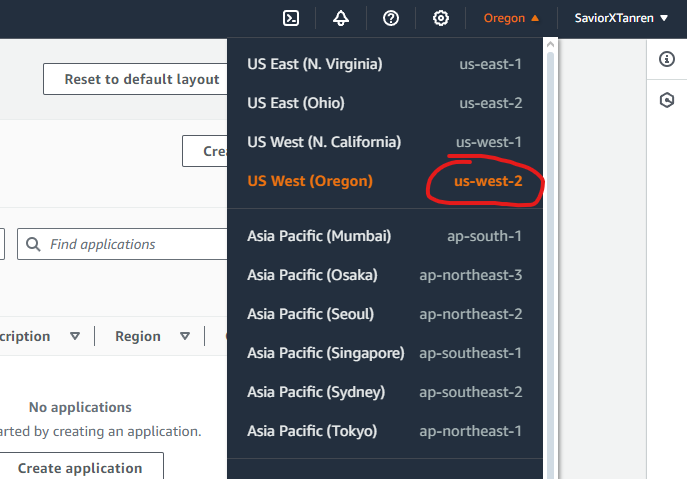
    2. After account creation has finished and you are logged in to the AWS Console main page, look in the top-right corner next to your username for the name of the region of your account. Click on the region name to have a list of all regions appear and make note of your currently selected region, specifically the region system name text next to the name of the region. This will be used later when connecting your AWS account: amazonpollyregion.png
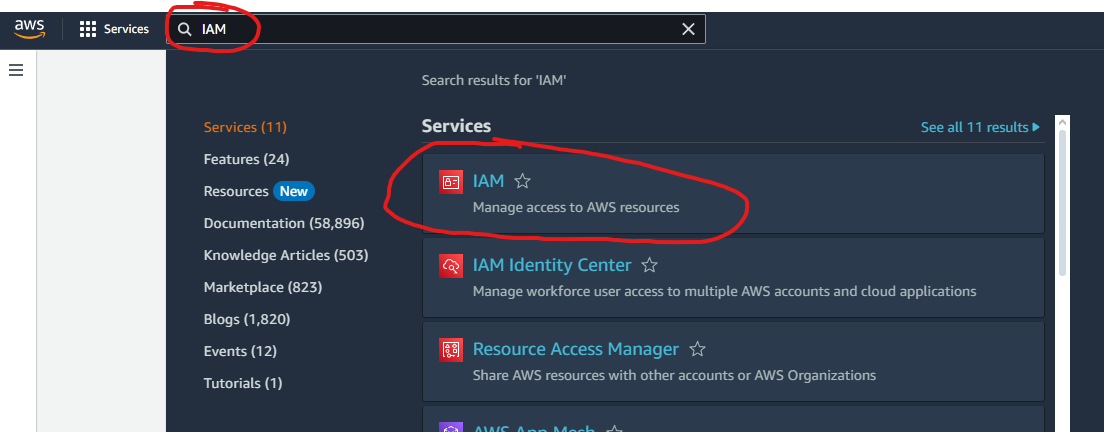
    3. On the AWS console main page, type “IAM” in the top search bar and select the IAM (Identity and Access Management) service: amazonpollyiam.png
    4. On the IAM (Identity and Access Management) page, under “Access Management” on the left menu, click on Users.
    5. On the Users page of IAM, click on “Create user” in the top-right corner:
      • Specify a user name for the user account (EX: “MixItUp”) and then click Next.
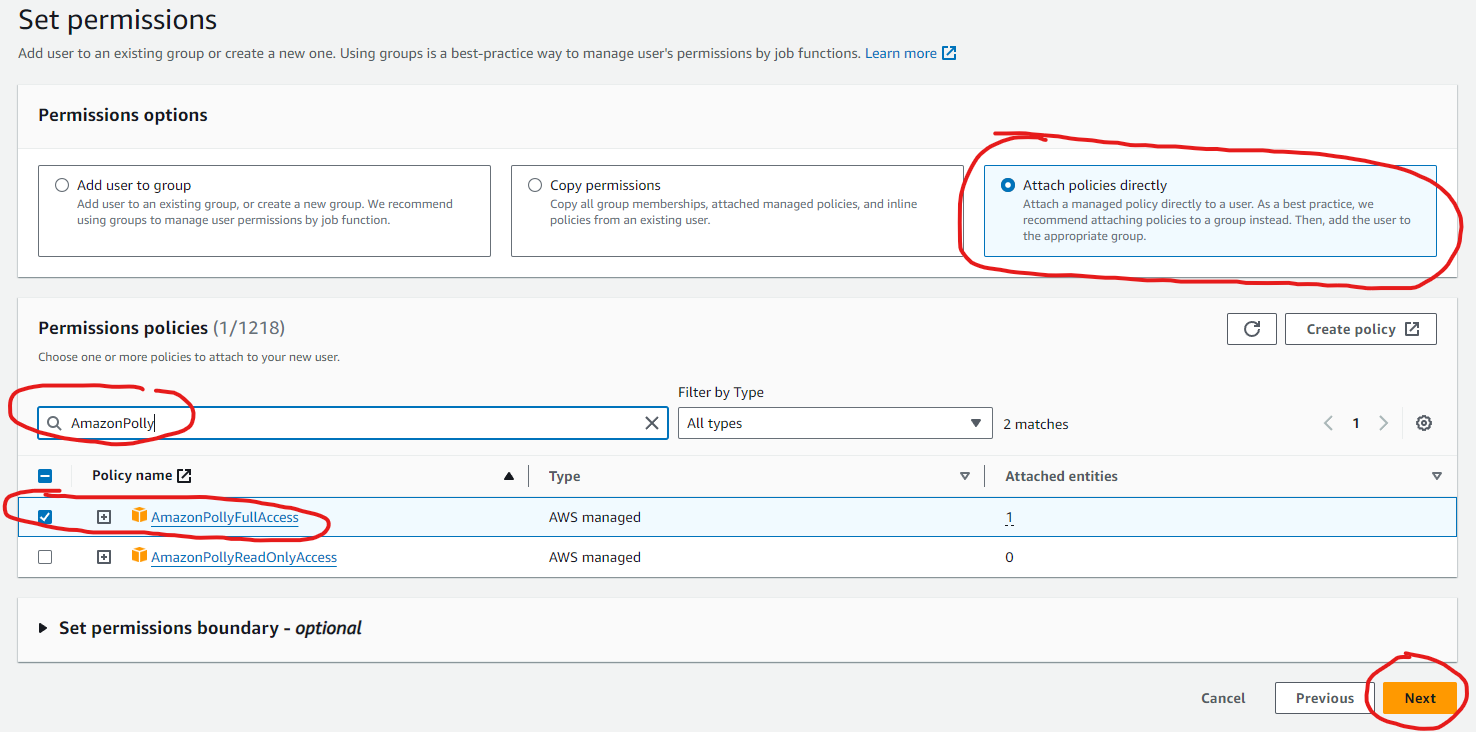
      • On the “Set permissions” section, click on the radio button for “Attach policies directly”, search for “AmazonPolly” in the “Permissions policies” section, click on the check box for “AmazonPollyFullAccess”, and then click Next. amazonpollyuserpermissions.png
      • Finally click the “Create user” button in the bottom-right corner.
    6. Back on the Users page, click on the next user account you created:
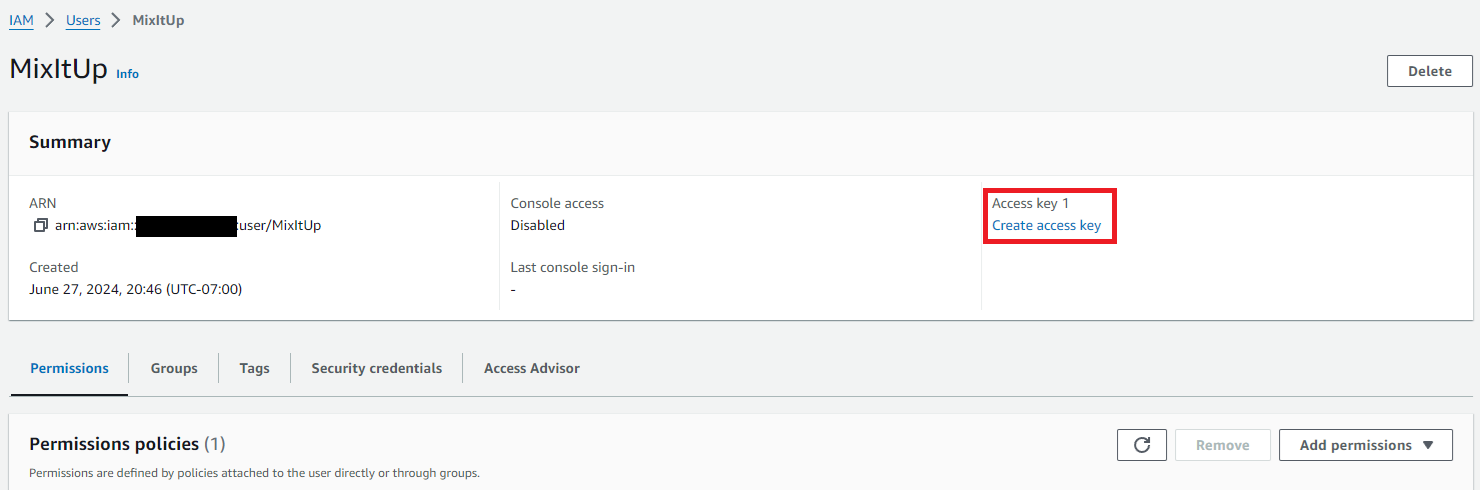
      • Click on the “Create access key” link under “Access key 1” on the far-right of the page amazonpollycreateaccesskey.png
      • On the next page, select the “Application running outside AWS” radio button and then click Next.
      • Optionally set a description for the access key and click “Create access key”.
      • On this page, you will see an “Access key” and a “Secret access key”. Copy both of these values somewhere safe for the time being, making note of which is which, and then click Done.
    7. Return to Mix It Up and head to Services -> Amazon Polly
      • Type in the region system name from step #2
      • Paste your Access key and Secret key into the corresponding text boxes from step #6
      • Click the Connect button to verify your access is configured correctly

    If you encounter an issue in setting up your AWS account, please visit the Mix It Up Support Discord for further assistance. When posting a support issue in there, DO NOT SHOW YOUR ACCESS KEY OR SECRET KEY as these will provide anyone access to use your AWS account’s Amazon Polly service.

    Choose which cookies to allow. Your preference is saved for 6 months.

    Necessary
    Required for the site to function correctly. Cannot be disabled.
    Analytics
    Helps us understand how visitors use the site. No personal data is shared with third parties.