Overview
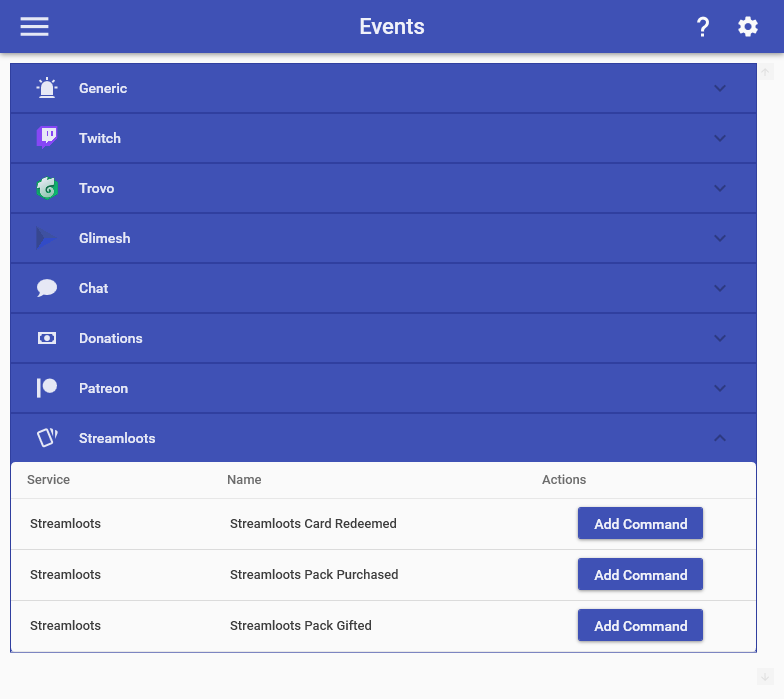
The Events feature allows you to subscribe to events that fire for the channel, such as follows, raids, and subscriptions. You can enable/disable an event by clicking on the circular sliding button. To test out an event, click on the Play button. To set up an event, simply click the Edit button and begin filling in actions. Some event commands have a delay on them due to one or more reasons. In almost all of these cases, these are delays that are typically out of our hands and are based on the way the service we are interacting with has designed things.
For donation/tipping events, it’s reliant on the individual service and what it provides access to. Any services that have a way to get real-time events will be done in real-time. Services that do not have real-time events will have a delay on them as we periodically check for new donations/tips.
Some event commands are designed to only be triggered once per-launch of Mix It Up as both a safeguard and preventative mechanism. These once-per-launch event commands correspond to things that would only be expected to occur once-per-stream. Some of these include stream start, stream stop, per-user follows, and per-user raids. By comparison, events related to things like gifted subscriptions or donations can be triggered any number of times because they are things that can occur multiple times in a stream and multiple times per person. It is expected that Mix It Up be shut down when not in use for streaming or editing, as event commands and other features are designed around the idea of once-per-launch. Any event commands that are only triggerable once per-launch or once per-user, per-launch will have a note indicating as such.
Generic
Generic event commands are a way to centralize your events across multiple platforms. These events will trigger if any individual platform has a similar event that would trigger (EX: The Twitch Channel Followed event command will also trigger the Generic Channel Followed event command). Generic events will only trigger if there is a corresponding event command of the same type for that specific platform. For each generic event command below, the list of supported platforms is noted next to the name.
Application Launch
This event will run immediately after Mix It Up is launched and logged into the current account. This can be used for setting up certain things for your stream prior to it actually starting (EX: Launching an application, setting Special Identifiers, etc). This event command is only triggered once per-application launch.
Application Exit
This event will run as Mix It Up is being shut down from the current account. This can be used for cleaning up any thing related to using Mix It Up. This event command is only triggered once per-application launch.
Channel Stream Start
Twitch, YouTube, Kick
This event will run when your stream goes from offline to online. It is often used to send out Discord and social media notices to alert users that your stream is starting. This event command is only triggered once per-application launch.
This event provides the following additional Special Identifiers:
- $streamingplatform = The name of the platform the event occurred on
Channel Stream Stop
Twitch, YouTube, Kick
This event will run when your stream goes from online to offline. It is often used to send out Discord and social media notices to alert users that your stream has ended. This event command is only triggered once per-application launch.
This event provides the following additional Special Identifiers:
- $streamingplatform = The name of the platform the event occurred on
Channel Followed
Twitch, Kick
This event will run the first time a user follows during this specific session of Mix It Up. This means, that if a user follows, unfollows, and then re-follows quickly, it will only run the first time. This event command is only triggered once per-user, per-application launch.
The User special identifiers indicate the user that followed. This event provides the following additional Special Identifiers:
- $streamingplatform = The name of the platform the event occurred on
Channel Raided
Twitch
This event triggers when a channel raids your channel. It is often used to thank the user for the raid using chat and possibly overlay. This event command is only triggered once per-user, per-application launch.
The User special identifiers indicate the user that raided. This event provides the following additional Special Identifiers:
- $streamingplatform = The name of the platform the event occurred on
- $raidviewercount = The number of viewers of the channel that raided (EX: 10)
Channel Subscribed
Twitch, YouTube, Kick
This event will run when a user subscribes to your channel. This event command is only triggered once per-user, per-application launch.
In addition to regular User Special Identifiers, this event provides the following additional Special Identifiers:
- $streamingplatform = The name of the platform the event occurred on
- $message = An optional message that the user can supply when subscribing
- $usersubplan = The tier of the plan (Prime/Tier 1/Tier 2/Tier 3)
Channel Resubscribed
Twitch, YouTube, Kick
This event will run when a user resubscribes to your channel. This event command is only triggered once per-user, per-application launch.
In addition to regular User Special Identifiers, this event provides the following additional Special Identifiers:
- $streamingplatform = The name of the platform the event occurred on
- $usersubplan = The tier of the plan (Prime/Tier 1/Tier 2/Tier 3)
- $usersubplanname = The specialized name you have set for that tier of subscription
- $message = An optional message that the user can supply when resubscribing
Channel Subscription Gifted
Twitch, YouTube, Kick
This event will run for every user that is gifted a subscription by another user in your channel. The User Special Identifiers reference the user that GIFTED the subscription (Ex: $username), while the Target User Special Identifiers reference the user that RECEIVED the subscription (Ex: $targetusername). This event provides the following additional Special Identifiers:
- $streamingplatform = The name of the platform the event occurred on
- $isanonymous = Whether the sub gifting was done anonymously (EX: true/false)
Channel Mass Subscriptions Gifted
Twitch, YouTube, Kick
This event will run once for each time a user in your channel gifts a set of subscriptions. This is when a user selects a number of subs to gift all at once to users in the channel. For example, if a user gifts 5 subscriptions to your channel, this event command will be run once, while the Channel Subscription Gifted will be run 5 times, once for each user. The User Special Identifiers reference the user that GIFTED the subscription.
What determines whether this command or the Channel Subscriptions Gifted command will run is based on what is set for the Mass Gifted Subscriptions Filter Amount under Settings -> Commands. This option is designed to help reduce the spam of subscription gifted commands and provide a better experience for your stream. For example, if this option is enabled and the amount is set to 5, then any time 5 OR LESS subscriptions are gifted at once, it will ONLY run the regular Subscription Gifted event command for each subscription. If MORE THAN 5 are gifted, then it will ONLY run the Mass Subscriptions Gifted event command once. Note that this will cause the processing of Subscription Gifted & Mass Subscription Gifted event commands to be slightly delayed, typically less than 10 seconds.
This event provides the following additional Special Identifiers:
- $streamingplatform = The name of the platform the event occurred on
- $subsgiftedamount = The number of subscriptions gifted for this specific instance
- $isanonymous = Whether the sub gifting was done anonymously (EX: true/false)
Twitch
Twitch Channel Stream Start
This event will run when your stream goes from offline to online. It is often used to send out Discord and social media notices to alert users that your stream is starting. This event command is only triggered once per-application launch. This event provides no additional special identifiers.
Twitch Channel Stream Stop
This event will run when your stream goes from online to offline. It is often used to send out Discord and social media notices to alert users that your stream has ended. This event command is only triggered once per-application launch. This event provides no additional special identifiers.
Twitch Channel Updated
This event will run when a change to your stream has been detected such as your title or category. It can be used to either notify your stream about a change or to perform specific actions based on the new changes. This event provides no additional special identifiers, but will often be used with the Stream Special Identifiers.
Twitch Channel Followed
This event will run the first time a user follows during this specific session of Mix It Up. This means, that if a user follows, unfollows, and then re-follows quickly, it will only run the first time. This event command is only triggered once per-user, per-application launch.
This event provides no additional special identifiers, however, it is often used with the User special identifiers.
Twitch Channel Raided
This event triggers when a channel raids your channel. It is often used to thank the user for the raid using chat and possibly overlay. Raids on Twitch are considered an active action and have a user count associated with them. This event command is only triggered once per-user, per-application launch.
The User special identifiers indicate the user that raided. This event provides the following additional Special Identifiers:
- $raidviewercount = The number of viewers of the channel that raided (EX: 10)
Twitch Channel Outgoing Raid Completed
This event triggers when your channel successfully completes a raid to another channel. Note that this will not trigger when you start the raid process (IE, when the countdown starts), but when your stream officially ends and your channel is now broadcasting the raided channel. This event command is only triggered once per-application launch.
The Target User Special Identifiers indicate the user that you are raiding. This event provides no additional special identifiers.
Twitch Channel Subscribed
This event will run when a user subscribes to your channel. This event command is only triggered once per-user, per-application launch.
In addition to regular User Special Identifiers, this event provides the following additional Special Identifiers:
- $usersubplan = The tier of the plan (Prime/Tier 1/Tier 2/Tier 3)
- $usersubplanname = The specialized name you have set for that tier of subscription
- $usersubpoints = The number of subscriber points contributed to your channel for this subscription
Twitch Channel Resubscribed
This event will run when a user resubscribes to your channel. This event command is only triggered once per-user, per-application launch.
In addition to regular User Special Identifiers, this event provides the following additional Special Identifiers:
- $usersubplan = The tier of the plan (Prime/Tier 1/Tier 2/Tier 3)
- $usersubmonths = The cumulative number of months that the user has been subscribed for
- $usersubstreak = The continuous number of months that the user has been subscribed for
- $usersubpoints = The number of subscriber points contributed to your channel for this subscription
- $message = An optional message that the user can supply when resubscribing
Twitch Channel Subscription Gifted
This event will run for every user that is gifted a subscription by another user in your channel. The User Special Identifiers reference the user that GIFTED the subscription (Ex: $username), while the Target User Special Identifiers reference the user that RECEIVED the subscription (Ex: $targetusername). This event provides the following additional Special Identifiers:
- $usersubplan = The tier of the plan (Prime/Tier 1/Tier 2/Tier 3)
- $usersubmonthsgifted = The total number of months gifted to the user in this specific instance
- $usersubpoints = The number of subscriber points contributed to your channel for this gifted sub
- $isanonymous = Whether the sub gifting was done anonymously (EX: true/false)
Twitch Channel Mass Subscriptions Gifted
This event will run once for each time a user in your channel gifts a set of mystery subscriptions. Mystery subscriptions are when the user selects a number of subs to gift and they are randomly gifted out to users in the channel. For example, if a user gifts 5 subscriptions to your channel, this event command will be run once, while the Twitch Channel Subscription Gifted will be run 5 times, once for each user. The User Special Identifiers reference the user that GIFTED the subscription (Ex: $username).
What determines whether this command or the Twitch Channel Subscriptions Gifted command will run is based on what is set for the Twitch Mass Gifted Subscriptions Filter Amount under Settings -> Commands. This option is designed to help reduce the spam of subscription gifted commands and provide a better experience for your stream. For example, if this option is enabled and the amount is set to 5, then any time 5 OR LESS subscriptions are gifted at once, it will ONLY run the regular Subscription Gifted event command for each subscription. If MORE THAN 5 are gifted, then it will ONLY run the Mass Subscriptions Gifted event command once. Note that this will cause the processing of Subscription Gifted & Mass Subscription Gifted event commands to be slightly delayed, typically less than 10 seconds.
This event provides the following additional Special Identifiers:
- $usersubplan = The tier of the plan (Prime/Tier 1/Tier 2/Tier 3)
- $subsgiftedamount = The number of subscriptions gifted for this specific instance
- $subsgiftedlifetimeamount = The number of subscriptions gifted by the user for their lifetime
- $substotalpoints = The total number of subscriber points contributed to your channel for these gifted subs
- $isanonymous = Whether the sub gifting was done anonymously (EX: true/false)
Twitch Channel Watch Streak
This event command is run when a user shares out a watch streak within the channel. In addition to regular User Special Identifiers, this event provides the following additional Special Identifiers:
- $userwatchstreak = The total streak of the user at that time (EX: 10)
- $watchstreakchannelpointsawarded = The total amount of channel points awarded to the user (EX: 450)
- $message = The message included when a user shares their watch streak
Twitch Channel Highlighted Message
This event command is run when a user utilizes the Highlight Message channel point reward in your channel. The User Special Identifiers reference the user who triggered the event. This event provides the following additional Special Identifiers:
- $message = The message included with the channel point reward
Twitch Channel User Intro
This event command is run when a user utilizes the User Intro feature in your chat. This event provides no additional special identifiers, however, it is often used with the User special identifiers.
Twitch Channel Power-Up Message Effect
This event command is run when a user utilizes the Message Effects channel point reward in your chat. The User Special Identifiers reference the user who triggered the event. This event provides the following additional Special Identifiers:
- $message = The message included with the channel point reward
Twitch Channel Power-Up Gigantified Emote
This event command is run when a user utilizes the Gigantified Emote channel point reward in your chat. The User Special Identifiers reference the user who triggered the event. This event provides the following additional Special Identifiers:
- $emotename = The text name associated with the emote
- $emoteurl = The image URL for the emote
Twitch Channel Power-Up Celebration
This event command is run when a user utilizes the Celebration channel point reward in your chat. This event provides no additional special identifiers, however, it is often used with the User special identifiers.
Twitch Channel Ad Upcoming
This event command is run when the next automatic ad will trigger within the time range specified under Setting -> Commands -> Twitch Upcoming Ad Command Amount (Minutes). For example, if the amount specified is 5 in the settings area, then this command will trigger approximately 5 minutes before the next automatic ad is performed in the channel. This event provides the following additional Special Identifiers:
- $adsnoozecount = The total number of snoozes currently available for the channel (EX: 3)
- $adnextduration = The duration in seconds of the next upcoming automatic ad (EX: 60)
- $adnextminutes = The number of minutes until the next upcoming automatic ad (EX: 4)
- $adnexttime = The timestamp of when the next automatic ad will play (EX: 1:23 PM)
Twitch Channel Ad Started
This event command is run when an ad break starts in the channel. Note that this command is triggered when Twitch notifies of an ad break starting, which is not necessarily when the ad break will start playing for all viewers in the channel. This means that there could be a delay of a few seconds from when this command is triggered to when users start seeing ads on their end. This event provides the following additional Special Identifiers:
- $adduration = The duration in seconds of the current ad (EX: 60)
- $adisautomatic = Whether the current ad was an automatic ad or a manually-triggered ad (EX: true)
Twitch Channel Ad Ended
This event command is run when an ad break finishes in the channel. Note that this command is triggered based on when Twitch notifies of an ad break starting + the duration of the ad break, which is not necessarily when the ad break will finish for all viewers in the channel. For example, if an ad break starts at 1:10 PM and the duration is 120 seconds, this command will trigger 1:12 PM. This means there could be a delay of a few seconds from when this command is triggered to when users stop seeing ads on their end. This event provides the following additional Special Identifiers:
- $adduration = The duration in seconds of the current ad (EX: 60)
- $adisautomatic = Whether the current ad was an automatic ad or a manually-triggered ad (EX: true)
Twitch Channel Bits Cheered
This event command is run when any form of bits are cheered in your channel which come from chat messages, but not from extensions. The User Special Identifiers reference the user who triggered the event. This event provides the following additional Special Identifiers:
- $bitsamount = The number of bits cheered
- $message = An optional message that the user can supply when cheering bits
- $messagenocheermotes = An optional message that the user can supply when cheering bits, but with all cheermotes removed.
Twitch Channel Points Redeemed
This event command is run when any CUSTOM channel points reward is redeemed in your channel, regardless of if it is set to auto-fulfill or must be manually fulfilled. The User Special Identifiers reference the user who triggered the event. This event provides the following additional Special Identifiers:
- $rewardname = The name of the reward
- $rewardcost = The cost of the reward
- $message = An optional message that the user can supply when the reward is redeemed
Twitch Channel Custom Power-Up Redeemed
This event command is run when a custom power-up is redeemed in your channel. The User Special Identifiers reference the user who triggered the event. This event provides the following additional Special Identifiers:
- $powerupname = The name of the power up
- $powerupcost = The cost of the power up
- $message = An optional message that the user can supply when the power up is redeemed
Twitch Channel Charity Donation
This event command is run when a charity donation is performed in your channel for your set Twitch charity. It provides all of the Donations special identifiers and the User Special Identifiers reference the user who donated. This event provides the following additional Special Identifiers:
- $charityname = The name of the charity.
- $charityimage = The image URL of the charity.
Twitch Channel Hype Chat
This event command runs when a hype chat is performed in your channel. The User Special Identifiers reference the user who performed the hype chat. This event provides the following additional Special Identifiers:
- $message = The message included with the hype chat.
- $hypechatlevel = The level of the hype chat.
- $hypechatamount = The amount spent as part of the hype chat in display format (EX: $1.23)
- $hypechatamountnumber = The amount spent as part of the hype chat in pure decimal format (EX: 1.23)
- $hypechatamountnumberdigits = The amount spent as part of the hype chat as pure digits (EX: 123)
Twitch Channel Hype Train Start
This event command runs when a hype train is starting by Twitch. It is often used to hype up the chat and encourage them to contribute. This event provides the following additional Special Identifiers:
- $hypetrainlevel = The current level that the hype train started on
- $hypetrainlevelpoints = The current points so far for the current level
- $hypetrainlevelgoal = The required number of points to complete the current level
- $hypetraintotalpoints = The total points earned for this hype train
Twitch Channel Hype Train Level Up
This event command runs when a level up occurs during a hype train on Twitch. This event provides the following additional Special Identifiers:
- $hypetraintotalpoints = The total points earned for this hype train so far
- $hypetrainlevel = The current level of the hype train
- $hypetrainlevelpoints = The current points so far for the current level
- $hypetrainlevelgoal = The required number of points to complete the current level
Twitch Channel Hype Train End
This event command runs when a hype train is ended by Twitch. It is often used to thank the chat. This event provides the following additional Special Identifiers:
- $hypetraintotalpoints = The total points earned for this hype train
- $hypetraintotallevel = The final level achieved for this hype train
Twitch Channel User Warned
This event fires when a moderator warns a chatter. The User Special Identifiers reference the moderator who issued the warning, and the Target User Special Identifiers reference the warned user. This event provides the following additional Special Identifiers:
- $warnreason = The reason given for the warning
Twitch Channel Shoutout Received
This event fires when another broadcaster shouts out your channel. The User Special Identifiers reference the broadcaster who sent the shoutout. This event provides the following additional Special Identifiers:
- $shoutoutviewercount = The number of viewers the broadcaster had when sending the shoutout
Twitch Channel Suspicious User Message
This event fires when a viewer flagged as suspicious sends a chat message. The User Special Identifiers reference the suspicious user. This event provides the following additional Special Identifiers:
- $suspicioususerstatus = The current suspicious status of the user
- $suspicioususertypes = The types of suspicious activity detected
- $suspicioususerbanevasion = Whether the user is suspected of ban evasion
Twitch Channel Suspicious User Updated
This event fires when a moderator changes a viewer’s suspicious status. The User Special Identifiers reference the moderator, and the Target User Special Identifiers reference the affected viewer. This event provides the following additional Special Identifiers:
- $suspicioususerstatus = The new suspicious status for the affected viewer
Twitch Channel Shield Mode Started
This event fires when Shield Mode is activated on your channel. The User Special Identifiers reference the moderator who activated it. Useful for posting an alert in chat or locking down bot commands during an attack.
Twitch Channel Shield Mode Ended
This event fires when Shield Mode is deactivated. The User Special Identifiers reference the moderator who deactivated it. Useful for restoring normal bot behavior after an attack.
Twitch Channel Goal Started
This event fires when a Creator Goal (follower, subscriber, etc.) is started. This event provides the following additional Special Identifiers:
- $goaltype = The type of goal that was started
- $goaldescription = The description of the goal
- $goaltargetamount = The target amount needed to complete the goal
Twitch Channel Goal Ended
This event fires when a Creator Goal ends, whether achieved or not. Use $goalachieved in a conditional action to branch logic between a celebration message and a regular wrap-up. This event provides the following additional Special Identifiers:
- $goaltype = The type of goal that ended
- $goaldescription = The description of the goal
- $goaltargetamount = The target amount needed to complete the goal
- $goalachieved = Whether the goal was achieved (EX: true/false)
YouTube
YouTube Channel Stream Start
This event will run when your stream goes from offline to online. It is often used to send out Discord and social media notices to alert users that your stream is starting. This event command is only triggered once per-application launch. This event provides no additional special identifiers.
YouTube Channel Stream Stop
This event will run when your stream goes from online to offline. It is often used to send out Discord and social media notices to alert users that your stream has ended. This event command is only triggered once per-application launch. This event provides no additional special identifiers.
YouTube Channel New Member
This event will run when a user becomes a new paid member of your channel. This event command is only triggered once per-user, per-application launch.
The User Special Identifiers reference the user who became the member. This event provides the following additional Special Identifiers:
- $usersubplan = The name of the membership level that the user paid for.
YouTube Channel Member Milestone
This event will run when a user reaches a new milestone for their paid membership of your channel. This event command is only triggered once per-user, per-application launch.
The User Special Identifiers reference the user who is the member. This event provides the following additional Special Identifiers:
- $message = The chat message included by the user for their membership milestone.
- $usersubplan = The name of the membership level that the user paid for.
- $usersubmonths = The number of months that the user has been a member of your channel.
YouTube Channel Membership Gifted
This event will run when a user gifts a paid member to another user in your channel. The User Special Identifiers reference the user that GIFTED the membership (Ex: $username), while the Target User Special Identifiers reference the user that RECEIVED the membership (Ex: $targetusername). This event provides the following additional Special Identifiers:
- $usersubplan = The name of the membership level that the user paid for.
YouTube Channel Mass Membership Gifted
This event will run once for each time a user in your channel gifts a set of memberships. Mass memberships are when the user selects a number of memberships to gift and they are randomly gifted out to users in the channel. For example, if a user gifts 5 memberships to your channel, this event command will be run once, while the YouTube Channel Membership Gifted will be run 5 times, once for each user. The User Special Identifiers reference the user that GIFTED the membership (Ex: $username).
What determines whether this command or the YouTube Channel Membership Gifted command will run is based on what is set for the Mass Gifted Subscriptions Filter Amount under Settings -> Commands. This option is designed to help reduce the spam of membership gifted commands and provide a better experience for your stream. For example, if this option is enabled and the amount is set to 5, then any time 5 OR LESS memberships are gifted at once, it will ONLY run the regular Membership Gifted event command for each subscription. If MORE THAN 5 are gifted, then it will ONLY run the Mass Membership Gifted event command once. Note that this will cause the processing of Membership Gifted & Mass Membership Gifted event commands to be slightly delayed, typically less than 10 seconds.
This event provides the following additional Special Identifiers:
- $subsgiftedamount = The number of memberships gifted.
- $usersubplan = The name of the membership level that the user paid for.
YouTube Channel Super Chat
This event will run when a user performs a super chat in your channel. The User Special Identifiers reference the user that performed the super chat. This event provides the following additional Special Identifiers:
- $message = The message included with the super chat.
- $amount = The amount spent as part of the super chat in display format (EX: $1.23)
- $amountnumber = The amount spent as part of the super chat in pure decimal format (EX: 1.23)
- $amountnumberdigits = The amount spent as part of the super chat as pure digits (EX: 123)
- $currencytype = The ISO 4217 (https://en.wikipedia.org/wiki/ISO_4217) currency code for the amount spent on the super chat (EX: USD)
- $tier = The tier of the super chat. Super Chat tiers define a range of money spent towards a Super Chat, starting at 1 and progressively increasing by 1 with every tier. The below chart is a rough approximation of the range for each tier, with the first row being tier 1. For amounts in currencies other than USD, YouTube will convert it to an equivalent USD amount to determine its tier. (EX: 1)

YouTube Channel Jewels Gift
This event will run when a user gifts Jewels in your channel. The User Special Identifiers reference the user that performed the Jewels gift. This event provides the following additional Special Identifiers:
- $message = The message included with the Jewels gift.
- $jewelsamount = The amount of Jewels redeemed for the gift. (EX: 10)
- $giftname = The name of the gift.
- $giftimageurl = The URL of the gift.
- $giftdurationseconds = The duration to display the gift URL. (EX: 5)
- $gifthasvisualeffects = Whether the gift has a visual effect. (EX: true)
- $giftcombocount = The combo count of the gift; 0 if not a combo. (EX: 3)
Kick
Kick Channel Stream Start
This event will run when your stream goes from offline to online. It is often used to send out Discord and social media notices to alert users that your stream is starting. This event command is only triggered once per-application launch. This event provides no additional special identifiers.
Kick Channel Stream Stop
This event will run when your stream goes from online to offline. It is often used to send out Discord and social media notices to alert users that your stream has ended. This event command is only triggered once per-application launch. This event provides no additional special identifiers.
Kick Channel Updated
This event triggers when a channel update is performed such as changing your category, title, or other livestream meta data. This event provides no additional special identifiers, however, any Special Identifiers can be used here.
Kick Channel Followed
This event will run the first time a user follows during this specific session of Mix It Up. This means, that if a user follows, unfollows, and then re-follows quickly, it will only run the first time. This event command is only triggered once per-user, per-application launch.
This event provides no additional special identifiers, however, it is often used with the User special identifiers.
Kick Channel Subscribed
This event will run when a user subscribes to your channel. This event command is only triggered once per-user, per-application launch.
In addition to regular User Special Identifiers, this event provides the following additional Special Identifiers:
- $usersubmonths = The number of months the user has been subscribed for (EX: 1)
Kick Channel Resubscribed
This event will run when a user resubscribes to your channel. This event command is only triggered once per-user, per-application launch.
In addition to regular User Special Identifiers, this event provides the following additional Special Identifiers:
- $usersubmonths = The cumulative number of months that the user has been subscribed for
- $usersubstreak = The continuous number of months that the user has been subscribed for
- $message = An optional message that the user can supply when resubscribing
Kick Channel Subscription Gifted
This event will run for every user that is gifted a subscription by another user in your channel. The User Special Identifiers reference the user that GIFTED the subscription (Ex: $username), while the Target User Special Identifiers reference the user that RECEIVED the subscription (Ex: $targetusername). This event provides the following additional Special Identifiers:
- $isanonymous = Whether the gifter is anonymous or not (EX: true)
Kick Channel Mass Subscriptions Gifted
This event will run once for each time a user in your channel gifts a set of subscriptions. This is when a user selects a number of subs to gift all at once to users in the channel. For example, if a user gifts 5 subscriptions to your channel, this event command will be run once, while the Kick Channel Subscription Gifted will be run 5 times, once for each user. The User Special Identifiers reference the user that GIFTED the subscription.
What determines whether this command or the Channel Subscriptions Gifted command will run is based on what is set for the Mass Gifted Subscriptions Filter Amount under Settings -> Commands. This option is designed to help reduce the spam of subscription gifted commands and provide a better experience for your stream. For example, if this option is enabled and the amount is set to 5, then any time 5 OR LESS subscriptions are gifted at once, it will ONLY run the regular Subscription Gifted event command for each subscription. If MORE THAN 5 are gifted, then it will ONLY run the Mass Subscriptions Gifted event command once. Note that this will cause the processing of Subscription Gifted & Mass Subscription Gifted event commands to be slightly delayed, typically less than 10 seconds.
This event provides the following additional Special Identifiers:
- $subsgiftedamount = The number of subscriptions gifted for this specific instance
- $subsgiftedlifetimeamount = The lifetime amount of subs for the gifter
- $isanonymous = Whether the gifter is anonymous or not (EX: true)
Kick Channel Points Redeemed
This event command is run when the reward either has “Should Redemption Skip Queue” enabled OR the reward was approved by a moderator in the rewards queue. Pending rewards will not trigger Mix It Up commands. The User Special Identifiers reference the user who triggered the event. This event provides the following additional Special Identifiers:
- $rewardname = The name of the reward
- $rewardcost = The cost of the reward
- $message = An optional message that the user can supply when the reward is redeemed
Kick Channel Kicks Gifted
This event command is run when any form of Kicks are gifted in your channel. The User Special Identifiers reference the user who triggered the event. This event provides the following additional Special Identifiers:
- $kicksamount = The number of kicks gifted
- $message = An optional message that the user can supply when gifting Kicks
- $giftname = The name of the Kicks gifted
- $gifttype = The type of the Kicks gifted
- $gifttier = The tier of the gift
Chat
Chat User Entrance
This event will run the first time a chat user sends a message in chat that is detected by Mix It Up. It will not run again for this user while Mix It Up is still running. If the user has a Custom Entrance Command, that will be triggered instead of this command.
The User Special Identifiers reference the user who triggered the event. This event provides the following additional Special Identifiers:
- $message = The message that the user sent to chat
Chat User First Message
This event will run the first time a brand-new chat user sends a message in chat that is detected by Mix It Up and it will never run again for this user. This event command is only triggered once per-user, per-application launch.
The User Special Identifiers reference the user who triggered the event. This event provides the following additional Special Identifiers:
- $message = The message that the user sent to chat
Chat New User Joined
This event will run the first time a brand-new chat user is detected in chat by Mix It Up and it will never run again for this user. Note that this is not the same as the first message that a user sends in chat, as there are many ways that a user can join the chat. For example, they can follow, subscribe, redeem a channel point, etc. All of these cause the user to appear to us in chat and will trigger the event. This event command is only triggered once per-user, per-application launch.
This event provides no additional special identifiers. However, it is often used with the User special identifiers.
Chat User Joined
This event will run the first time a chat user is detected in chat by Mix It Up. It will not run again for this user while Mix It Up is still running. Note that this is not the same as the first message that a user sends in chat, as there are many ways that a user can join the chat. For example, they can follow, subscribe, redeem a channel point, etc. This can even include a user connecting to chat, but not interacting with it in anyways. All of these cause the user to appear to us in chat and will trigger the event. This event command is only triggered once per-user, per-application launch.
This event provides no additional special identifiers. However, it is often used with the User special identifiers.
Chat User Left
This event will run the first time a chat user has left chat as detected by Mix It Up. It will not run again for this user while Mix It Up is still running. This event command is only triggered once per-user, per-application launch.
This event provides no additional special identifiers. However, it is often used with the User special identifiers.
Chat Message Received
This event triggers every time a chat message is received in chat. The User Special Identifiers reference the user who triggered the event. This event provides the following additional Special Identifiers:
- $message = The message that the user sent to chat
Chat Whisper Received
This event triggers every time a chat whisper is received on your main Streamer account in chat. The User Special Identifiers reference the user who triggered the event. This event provides the following additional Special Identifiers:
- $message = The whisper that the user sent to chat
Chat Message Deleted
This event triggers every time a chat message is deleted in chat. The User Special Identifiers reference the user who performed the deletion if we could detect them and the Target User Special identifiers reference the user whose message was deleted. This event provides the following additional Special Identifiers:
- $message = The message that the user sent to chat
- $reason = The reason the message was deleted
Chat User Timeout
This event will run when a user has been timed out in chat. This event does not indicate who performed the timeout, only the user that was timed out. The Target User Special Identifiers will indicate the user that was timed out. This event provides the following additional Special Identifiers:
- $timeoutlength = The length of the timeout in seconds
Chat User Banned
This event will run when a user has been banned in chat. This event does not indicate who performed the ban, only the user that was banned. The Target User Special Identifiers will indicate the user that was banned. This event provides no additional special identifiers.
Donations
Streamlabs Donation
This event fires when a Streamlabs donation is detected. It provides all of the Donations special identifiers along with all of the standard User special identifiers that represent the user that sent the donation.
StreamElements Donation
This event fires when a StreamElements donation is detected. It provides all of the Donations special identifiers along with all of the standard User special identifiers that represent the user that sent the donation.
StreamElements Merch Purchase
This event fires when a StreamElements merchandise purchase is detected. It provides all of the Donations special identifiers along with all of the standard User special identifiers that represent the user that sent the donation. The Argument Special Identifiers correspond to each unique item and the amount of that item (EX: $arg1text = “Shirt x2”). The following additional Special Identifiers are available:
- $allitems = A comma-delimited list of all the items purchased along with their amounts (EX: “Shirt x2, Mug x4”)
- $totalitems = The sum total of items purchased (EX: If 2 shirts and 4 mugs were purchased, this would “6”)
TipeeeStream Donation
This event fires when a TipeeeStream donation is detected. It provides all of the Donations special identifiers along with all of the standard User special identifiers that represent the user that sent the donation.
Rainmaker Donation
This event fires when a Rainmaker donation is detected. It provides all of the Donations special identifiers along with all of the standard User special identifiers that represent the user that sent the donation.
TreatStream Donation
This event fires when a TreatStream donation is detected. It provides all of the Donations special identifiers along with all of the standard User special identifiers that represent the user that sent the donation.
Tiltify Donation (1 Minute Delay)
This event fires when a Tiltify donation is detected. It provides all of the Donations special identifiers along with all of the standard User special identifiers that represent the user that sent the donation. The following additional Special Identifiers are available:
- $tiltifyrewardid = The ID of the reward if available (EX: 0b696369-5957-451f-b147-e200d48243d3)
- $tiltifyrewardname = The name of the reward
- $tiltifyrewarddescription = The description of the reward
- $tiltifyrewardamount = The amount of the reward
Donor Drive Donation (1 Minute Delay)
This event fires when a Donor Drive donation is detected. It provides all of the Donations special identifiers along with all of the standard User special identifiers that represent the user that sent the donation. Additionally, you can use the globally available Donor Drive special identifiers with this command and others.
- $donordriverecipientname = The name of the user who received the donation (IE, the streamer)
- $donordriverecipientimageurl = The image URL of the user who received the donation (IE, the streamer)
Donor Drive Donation Incentive (1 Minute Delay)
This event fires when a Donor Drive Incentive is included in a donation. It provides all of the Donations special identifiers along with all of the standard User special identifiers that represent the user that sent the donation. Additionally, you can use the globally available Donor Drive special identifiers with this command and others. The following additional Special Identifiers are available:
- $donordriveincentivedescription = The description text of the incentive
Donor Drive Donation Milestone (1 Minute Delay)
This event fires when a Donor Drive Milestone has been reached. It provides all of the Donations special identifiers along with all of the standard User special identifiers that represent the user that sent the donation. Additionally, you can use the globally available Donor Drive special identifiers with this command and others. The following additional Special Identifiers are available:
- $donordrivemilestonedescription = The description text of the milestone
- $donordrivemilestoneamountnumber = The amount associated with the milestone as a pure decimal number (EX: 12.34)
- $donordrivemilestoneamount = The amount associated with the milestone (EX: $12.34)
Donor Drive Team Donation Incentive (1 Minute Delay)
This event fires when a Donor Drive Team Incentive is included in a donation. It provides all of the Donations special identifiers along with all of the standard User special identifiers that represent the user that sent the donation. Additionally, you can use the globally available Donor Drive special identifiers with this command and others.
Team incentives are only included if the “Include Team Donations / Events” option is toggled under Services -> DonorDrive.
The following additional Special Identifiers are available:
- $donordriveincentivedescription = The description text of the incentive
Donor Drive Team Donation Milestone (1 Minute Delay)
This event fires when a Donor Drive Team Milestone has been reached. It provides all of the Donations special identifiers along with all of the standard User special identifiers that represent the user that sent the donation. Additionally, you can use the globally available Donor Drive special identifiers with this command and others.
Team incentives are only included if the “Include Team Donations / Events” option is toggled under Services -> DonorDrive.
The following additional Special Identifiers are available:
- $donordrivemilestonedescription = The description text of the milestone
- $donordrivemilestoneamountnumber = The amount associated with the milestone as a pure decimal number (EX: 12.34)
- $donordrivemilestoneamount = The amount associated with the milestone (EX: $12.34)
JustGiving Donation (1 Minute Delay)
This event fires when a JustGiving donation is detected. It provides all of the Donations special identifiers along with all of the standard User special identifiers that represent the user that sent the donation.
Crowd Control
Crowd Control Effect Redeemed
This event fires when any Crowd Control effect has redeemed. It shares the same Special Identifiers that can be found for Crowd Control Commands.
Pulsoid
Pulsoid Heart Rate Changed
This event fires when any heart rate change is detected from Pulsoid. It shares the same Special Identifiers provided by the Pulsoid service.
Patreon
Patreon Subscribed (1 Minute Delay)
This event runs whenever a user subscribes to your linked Patreon account. It provides all of the Donations special identifiers along with all of the standard User special identifiers that represent the user that subscribed. The following additional Special Identifiers are available:
- $patreontiername = The name of the Patreon tier that the user subscribed to.
- $patreontieramount = The total currency amount, along with the appropriate currency symbol, for the Patreon tier that the user subscribed to.
- $patreontierimage = The image associated with the Patreon tier that the user subscribed to.
Streamloots
Streamloots Card Redeemed
This event runs whenever a user redeems a Streamloots card. The User Special Identifiers reference the user that redeemed the card. This event provides the same Special Identifiers as Streamloots Card Commands.
Streamloots Pack Purchased
This event runs whenever a user purchases a pack of Streamloots cards. The User Special Identifiers reference the user that purchased the pack. This event provides the following additional Special Identifiers:
- $streamlootspurchasequantity - The total number of packs purchased. (EX: 3)
Streamloots Pack Gifted
This event runs whenever a user gifts a pack of Streamloots cards to another user. The User Special Identifiers reference the user that GIFTED the pack, while the Target User Special Identifiers reference the user that RECEIVED the pack. This event provides the following additional Special Identifiers:
- $streamlootspurchasequantity - The total number of packs purchased. (EX: 3)