• General
  • Accounts
  • FAQ
  • Getting Started
  • Getting Started
  • Home
  • Tutorials
  • Usage & Requirements
  • Usage Requirements
  • Preview Program
  • Uninstall
  • Platforms
  • YouTube Overlay Widget
  • Twitch
  • Twitch Action
  • Twitch Channel Point Commands
  • Twitch Bits Commands
  • Kick
  • Kick Action
  • Kick Channel Point Commands
  • Kick Kicks Commands
  • Integrations
  • Microsoft Azure Speech
  • Lumia Stream
  • TTS.Monster
  • Pulsoid
  • Tiltify
  • TipeeeStream
  • XSplit
  • Streamlabs
  • Streamlabs
  • Streamlabs Desktop (Streamlabs OBS)
  • Infinite Album
  • Patreon
  • Streamloots
  • Streamloots Card Commands
  • Streamloots
  • mtion studio
  • OvrStream
  • VTube Studio
  • VTS P.O.G.
  • Loupedeck
  • Amazon Polly
  • Discord
  • Rainmaker
  • Responsive Voice
  • Crowd Control
  • Crowd Control Commands
  • Crowd Control
  • OBS Studio
  • JustGiving
  • Stream Deck
  • Twitter
  • Twitch Interactive Throwing System
  • StreamElements
  • TreatStream
  • SAMMI
  • Pixel Chat
  • PolyPop
  • Stream Avatars
  • IFTTT
  • Donor Drive
  • Voicemod
  • Google Cloud TTS
  • Meld Studio
  • Features
  • Moderation
  • Inventory
  • Consumables
  • Overlays
  • Custom Overlay Widget
  • End Credits Overlay Widget
  • Chat Overlay Widget
  • Video Overlay Widget
  • Label Overlay Widget
  • Image Overlay Widget
  • Stream Boss Overlay Widget
  • Overlays & Alerts
  • Overlay Widgets
  • Wheel Overlay Widget
  • Persistent Timer Overlay Widget
  • Leaderboard Overlay Widget
  • Poll Overlay Widget
  • Text Overlay Widget
  • Overlay
  • Event List Overlay Widget
  • Game Queue Overlay Widget
  • Persistent Emote Effect Overlay Widget
  • Goal Overlay Widget
  • HTML Overlay Widget
  • Quotes
  • Stream Pass
  • Giveaways
  • Chat
  • Rank
  • Actions
  • Counter Action
  • Action Groups
  • Input Action
  • Sound Action
  • Special Identifier Action
  • Script Action
  • Streaming Software Action
  • Actions
  • Group Action
  • Web Request Action
  • Text To Speech Action
  • Conditional Action
  • Random Action
  • Repeat Action
  • Wait Action
  • Serial Action
  • Consumable Action
  • File Action
  • External Program Action
  • Game Queue
  • Users
  • Events & Triggers
  • Statistics
  • Redemption Store
  • Commands
  • Command History
  • Command Action
  • Community Commands
  • Timer Commands
  • Game Commands
  • Chat Commands
  • Pre-Made Chat Commands
  • Webhook Commands
  • Commands
  • Event Commands
  • Timers
  • Currency
  • Music Player
  • Reference
  • Special Identifiers
  • Mix It Up Ambassadors
  • Services
  • Developer API
  • Integrations
  • Sound Action

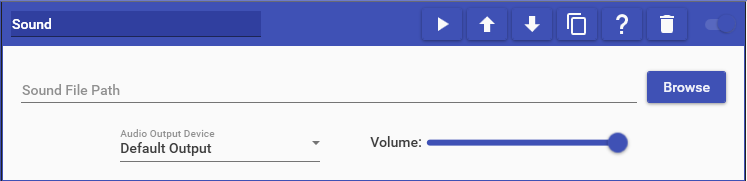
    Sound actions allow you to play a sound on your computer. You specify the sound file you wish to play and the volume to play it at from 0-100. When diagnosing issues with sounds not properly playing, here are some steps to follow:

    • Ensure the Audio Output Device you have selected is correct. If it’s set to Default Output, then it will use whatever you have set as your Default Audio Device in Mix It Up under Settings -> General. If the Default Audio Output setting is also set to Default Output, then it will use whatever audio device Windows has set as the default output.
    • Try another audio file and see if that works. If other audio files work, then the issue could be with the audio file you are using either due to the file extension or the audio encoding. Try converting you audio file to an MP3 format or if it already is an MP3 file, try using an online MP3 converter to re-encode the file or use a program like Audacity to re-export the mp3 file.

    Using the Mix It Up Overlay as an Audio Output Device

    When selecting an Audio Output Device, you can optionally use the Mix It Up Overlay to play sounds over. This can be useful if you want to more directly control audio levels or handle stream audio pass-through in your streaming software.

    When using the Mix It Up Overlay as the Audio Output Device, sounds will ONLY be played through the Default Overlay Endpoint. This is to ensure that audio does not duplicate and create an echo effect if you are utilizing multiple Overlay Endpoints on the same scene in your streaming software. See the Overlay Endpoints section for more information.

    Choose which cookies to allow. Your preference is saved for 6 months.

    Necessary
    Required for the site to function correctly. Cannot be disabled.
    Analytics
    Helps us understand how visitors use the site. No personal data is shared with third parties.