• General
  • Accounts
  • FAQ
  • Getting Started
  • Getting Started
  • Home
  • Tutorials
  • Usage & Requirements
  • Usage Requirements
  • Preview Program
  • Uninstall
  • Platforms
  • YouTube Overlay Widget
  • Twitch
  • Twitch Action
  • Twitch Channel Point Commands
  • Twitch Bits Commands
  • Kick
  • Kick Action
  • Kick Channel Point Commands
  • Kick Kicks Commands
  • Integrations
  • Microsoft Azure Speech
  • Lumia Stream
  • TTS.Monster
  • Pulsoid
  • Tiltify
  • TipeeeStream
  • XSplit
  • Streamlabs
  • Streamlabs
  • Streamlabs Desktop (Streamlabs OBS)
  • Infinite Album
  • Patreon
  • Streamloots
  • Streamloots Card Commands
  • Streamloots
  • mtion studio
  • OvrStream
  • VTube Studio
  • VTS P.O.G.
  • Loupedeck
  • Amazon Polly
  • Discord
  • Rainmaker
  • Responsive Voice
  • Crowd Control
  • Crowd Control Commands
  • Crowd Control
  • OBS Studio
  • JustGiving
  • Stream Deck
  • Twitter
  • Twitch Interactive Throwing System
  • StreamElements
  • TreatStream
  • SAMMI
  • Pixel Chat
  • PolyPop
  • Stream Avatars
  • IFTTT
  • Donor Drive
  • Voicemod
  • Google Cloud TTS
  • Meld Studio
  • Features
  • Moderation
  • Inventory
  • Consumables
  • Overlays
  • Custom Overlay Widget
  • End Credits Overlay Widget
  • Chat Overlay Widget
  • Video Overlay Widget
  • Label Overlay Widget
  • Image Overlay Widget
  • Stream Boss Overlay Widget
  • Overlays & Alerts
  • Overlay Widgets
  • Wheel Overlay Widget
  • Persistent Timer Overlay Widget
  • Leaderboard Overlay Widget
  • Poll Overlay Widget
  • Text Overlay Widget
  • Overlay
  • Event List Overlay Widget
  • Game Queue Overlay Widget
  • Persistent Emote Effect Overlay Widget
  • Goal Overlay Widget
  • HTML Overlay Widget
  • Quotes
  • Stream Pass
  • Giveaways
  • Chat
  • Rank
  • Actions
  • Counter Action
  • Action Groups
  • Input Action
  • Sound Action
  • Special Identifier Action
  • Script Action
  • Streaming Software Action
  • Actions
  • Group Action
  • Web Request Action
  • Text To Speech Action
  • Conditional Action
  • Random Action
  • Repeat Action
  • Wait Action
  • Serial Action
  • Consumable Action
  • File Action
  • External Program Action
  • Game Queue
  • Users
  • Events & Triggers
  • Statistics
  • Redemption Store
  • Commands
  • Command History
  • Command Action
  • Community Commands
  • Timer Commands
  • Game Commands
  • Chat Commands
  • Pre-Made Chat Commands
  • Webhook Commands
  • Commands
  • Event Commands
  • Timers
  • Currency
  • Music Player
  • Reference
  • Special Identifiers
  • Mix It Up Ambassadors
  • Services
  • Developer API
  • Integrations
  • Command Action

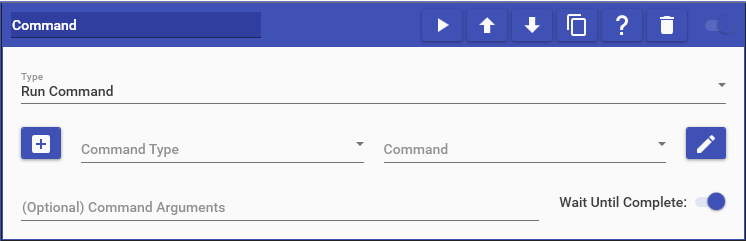
    Command actions allow you to run & enable/disable other commands you have.

    When running another command, it will be run as the user who triggered the currently running command. After you have selected a command, you can also specify what arguments to use with the command. If no arguments are specified, the currently running command’s arguments will be used. You may also use Special Identifiers in the Arguments field.

    When running a command via the Command Action, it runs everything associated with the command. This not only means the actions within it, but all aspects of the command such as Usage Requirements. For example, let’s say you’re trying to run a shoutout chat command that has Moderator permissions on it. If you try to run it via a Command Action, it is also going to check if the user has Moderator permissions. So it’s important to consider how you have your commands set up and what type of commands they are. Do note that things like Usage Requirements don’t exist on all commands types, such as Action Groups, which make them ideal for this sort of behavior.

    By default, the action will wait for the selected command to finish before moving on to the next action. This can be changed by toggling the “Wait Until Complete” option. When a Command Action waits until the selected sub-command is completed, the sub-command WILL NOT use the built-in command locking system for this specific time it is run. This is to prevent what’s known as a deadlock (command gets stuck and can’t complete). This also means that other commands of the same type as the selected sub-command will be able to run at the same time if it’s different than the current command. For example, if the selected sub-command is an Action Group, then it will still be possible for another Action Group to run at the same time if this is enabled. You can think of it as similar to toggling the “Unlock Command” option, but it instead only applies to this specific time.

    This action supports the following options:

    • Run Command: Runs the specified command
    • Enable Command: Enables the selected command
    • Disable Command: Disables the selected command
    • Toggle Command: Toggles the state of the command between enabled and disabled
    • Enable Command Group: Enables all commands in the selected group
    • Disable Command Group: Disables all commands in the selected group
    • Cancel All Commands: Cancels all currently pending commands
    • Pause All Commands: Pauses all currently pending and future commands
    • Unpause All Commands: Unpauses all currently paused commands
    • Set Command Cooldown: Manually sets the cooldown for the command based on the type of cooldown it has set for it.
    • Exit Current Command: Immediately stops the current running command. If the current command is part of a chain of commands (EX: Command A triggered Command B), it will only stop the command that has this action in it and not any previous commands in the chain.

    Choose which cookies to allow. Your preference is saved for 6 months.

    Necessary
    Required for the site to function correctly. Cannot be disabled.
    Analytics
    Helps us understand how visitors use the site. No personal data is shared with third parties.