• General
  • Accounts
  • FAQ
  • Getting Started
  • Getting Started
  • Home
  • Tutorials
  • Usage & Requirements
  • Usage Requirements
  • Preview Program
  • Uninstall
  • Platforms
  • YouTube Overlay Widget
  • Twitch
  • Twitch Action
  • Twitch Channel Point Commands
  • Twitch Bits Commands
  • Kick
  • Kick Action
  • Kick Channel Point Commands
  • Kick Kicks Commands
  • Integrations
  • Microsoft Azure Speech
  • Lumia Stream
  • TTS.Monster
  • Pulsoid
  • Tiltify
  • TipeeeStream
  • XSplit
  • Streamlabs
  • Streamlabs
  • Streamlabs Desktop (Streamlabs OBS)
  • Infinite Album
  • Patreon
  • Streamloots
  • Streamloots Card Commands
  • Streamloots
  • mtion studio
  • OvrStream
  • VTube Studio
  • VTS P.O.G.
  • Loupedeck
  • Amazon Polly
  • Discord
  • Rainmaker
  • Responsive Voice
  • Crowd Control
  • Crowd Control Commands
  • Crowd Control
  • OBS Studio
  • JustGiving
  • Stream Deck
  • Twitter
  • Twitch Interactive Throwing System
  • StreamElements
  • TreatStream
  • SAMMI
  • Pixel Chat
  • PolyPop
  • Stream Avatars
  • IFTTT
  • Donor Drive
  • Voicemod
  • Google Cloud TTS
  • Meld Studio
  • Features
  • Moderation
  • Inventory
  • Consumables
  • Overlays
  • Custom Overlay Widget
  • End Credits Overlay Widget
  • Chat Overlay Widget
  • Video Overlay Widget
  • Label Overlay Widget
  • Image Overlay Widget
  • Stream Boss Overlay Widget
  • Overlays & Alerts
  • Overlay Widgets
  • Wheel Overlay Widget
  • Persistent Timer Overlay Widget
  • Leaderboard Overlay Widget
  • Poll Overlay Widget
  • Text Overlay Widget
  • Overlay
  • Event List Overlay Widget
  • Game Queue Overlay Widget
  • Persistent Emote Effect Overlay Widget
  • Goal Overlay Widget
  • HTML Overlay Widget
  • Quotes
  • Stream Pass
  • Giveaways
  • Chat
  • Rank
  • Actions
  • Counter Action
  • Action Groups
  • Input Action
  • Sound Action
  • Special Identifier Action
  • Script Action
  • Streaming Software Action
  • Actions
  • Group Action
  • Web Request Action
  • Text To Speech Action
  • Conditional Action
  • Random Action
  • Repeat Action
  • Wait Action
  • Serial Action
  • Consumable Action
  • File Action
  • External Program Action
  • Game Queue
  • Users
  • Events & Triggers
  • Statistics
  • Redemption Store
  • Commands
  • Command History
  • Command Action
  • Community Commands
  • Timer Commands
  • Game Commands
  • Chat Commands
  • Pre-Made Chat Commands
  • Webhook Commands
  • Commands
  • Event Commands
  • Timers
  • Currency
  • Music Player
  • Reference
  • Special Identifiers
  • Mix It Up Ambassadors
  • Services
  • Developer API
  • Integrations
  • Timers

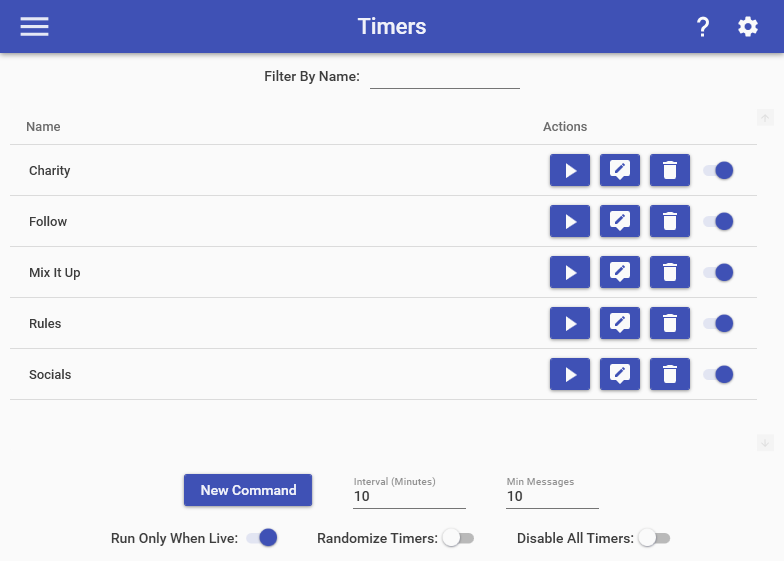
    The Timers feature allows you to run a series of commands on an automated basis. A timer command is run every time both of the following requirements are met:

    • The minimum time has occurred since the last timer command
    • The minimum number of messages have occurred in chat since the last timer command

    By default, all timers will follow the the above settings. However, timers can run in more unique scenarios when you assign them to a group. There are 3 “categories” of timers that exist:

    1. Timers not in a group
    2. Timers in a group but without a timer interval
    3. Timers in a group with a timer interval

    All the timers in #1 & #2 are assembled together into one “mega group”. All the timers in this group will run one-after-another based on the global timer settings you set at the bottom of the Timers page (EX: You have 8 timers in total across various groups and the interval is set to 10 minutes, it’ll take 80 minutes to run through all the timers). So timers that fall into #2 are essentially more of an visual organization tool (EX: Here’s all my social media timers)

    All the timers in #3 are grouped up based on their groups and each group will run independently based on their own timer intervals. So if you have a group that has a timer interval of 5, it will run 1 timer from that group every 5 minutes as it’s own dedicated set of timers. These will run in parallel to the timers explained in the paragraph above. However these timers do not respect the global timer settings, which includes both the global timer interval & min messages. They only follow the timer interval set for the group.

    So here’s a more full example of how it’ll play out. Let’s say your global timer setting is once every 5 minutes and have the following timers:

    • Timers not grouped
    • Timers grouped but without a timer interval
    • Timers in group A with a 10 minute interval
    • Timers in group B with a 20 minute interval

    You’ll have 3 sets of timers running in parallel to each other:

    • Every 5 minutes it’ll run a timer from the set of not grouped and grouped but without a timer interval
    • Every 10 minutes it’ll run a timer from group A with the 10 minute interval
    • Every 20 minutes it’ll run a timer from group B with the 20 minute interval

    Choose which cookies to allow. Your preference is saved for 6 months.

    Necessary
    Required for the site to function correctly. Cannot be disabled.
    Analytics
    Helps us understand how visitors use the site. No personal data is shared with third parties.