• General
  • Accounts
  • FAQ
  • Getting Started
  • Getting Started
  • Home
  • Tutorials
  • Usage & Requirements
  • Usage Requirements
  • Preview Program
  • Uninstall
  • Platforms
  • YouTube Overlay Widget
  • Twitch
  • Twitch Action
  • Twitch Channel Point Commands
  • Twitch Bits Commands
  • Kick
  • Kick Action
  • Kick Channel Point Commands
  • Kick Kicks Commands
  • Integrations
  • Microsoft Azure Speech
  • Lumia Stream
  • TTS.Monster
  • Pulsoid
  • Tiltify
  • TipeeeStream
  • XSplit
  • Streamlabs
  • Streamlabs
  • Streamlabs Desktop (Streamlabs OBS)
  • Infinite Album
  • Patreon
  • Streamloots
  • Streamloots Card Commands
  • Streamloots
  • mtion studio
  • OvrStream
  • VTube Studio
  • VTS P.O.G.
  • Loupedeck
  • Amazon Polly
  • Discord
  • Rainmaker
  • Responsive Voice
  • Crowd Control
  • Crowd Control Commands
  • Crowd Control
  • OBS Studio
  • JustGiving
  • Stream Deck
  • Twitter
  • Twitch Interactive Throwing System
  • StreamElements
  • TreatStream
  • SAMMI
  • Pixel Chat
  • PolyPop
  • Stream Avatars
  • IFTTT
  • Donor Drive
  • Voicemod
  • Google Cloud TTS
  • Meld Studio
  • Features
  • Moderation
  • Inventory
  • Consumables
  • Overlays
  • Custom Overlay Widget
  • End Credits Overlay Widget
  • Chat Overlay Widget
  • Video Overlay Widget
  • Label Overlay Widget
  • Image Overlay Widget
  • Stream Boss Overlay Widget
  • Overlays & Alerts
  • Overlay Widgets
  • Wheel Overlay Widget
  • Persistent Timer Overlay Widget
  • Leaderboard Overlay Widget
  • Poll Overlay Widget
  • Text Overlay Widget
  • Overlay
  • Event List Overlay Widget
  • Game Queue Overlay Widget
  • Persistent Emote Effect Overlay Widget
  • Goal Overlay Widget
  • HTML Overlay Widget
  • Quotes
  • Stream Pass
  • Giveaways
  • Chat
  • Rank
  • Actions
  • Counter Action
  • Action Groups
  • Input Action
  • Sound Action
  • Special Identifier Action
  • Script Action
  • Streaming Software Action
  • Actions
  • Group Action
  • Web Request Action
  • Text To Speech Action
  • Conditional Action
  • Random Action
  • Repeat Action
  • Wait Action
  • Serial Action
  • Consumable Action
  • File Action
  • External Program Action
  • Game Queue
  • Users
  • Events & Triggers
  • Statistics
  • Redemption Store
  • Commands
  • Command History
  • Command Action
  • Community Commands
  • Timer Commands
  • Game Commands
  • Chat Commands
  • Pre-Made Chat Commands
  • Webhook Commands
  • Commands
  • Event Commands
  • Timers
  • Currency
  • Music Player
  • Reference
  • Special Identifiers
  • Mix It Up Ambassadors
  • Services
  • Developer API
  • Integrations
  • Quotes

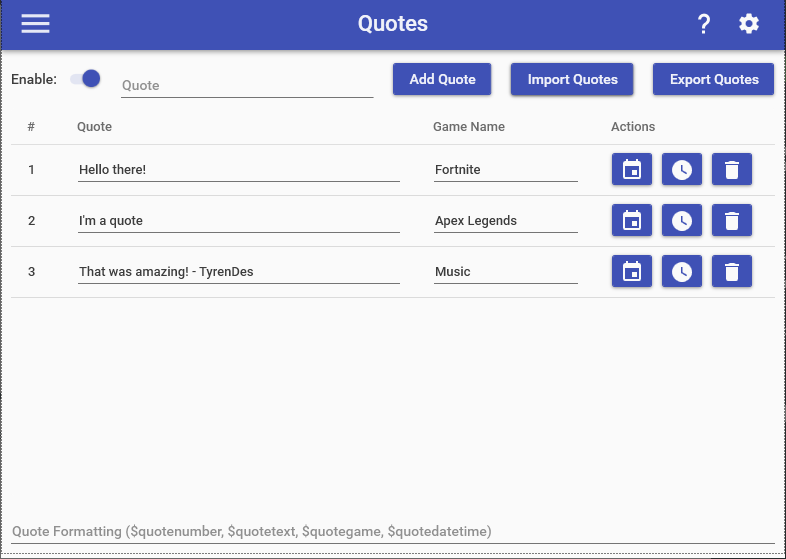
    The Quotes feature allows you to maintain some of the best phrases or sayings from your streams. You have the ability to manually add, edit, and remove quotes in the text box shown (one quote per line) and users have the ability to add and view a random quotes using pre-existing chat commands. For more information, please refer to the Pre-Made Chat Commands page.

    When quotes are enabled, the following additional Special Identifiers can be used in any commands:

    • $quoteX = Gets the Xth quote in quote display format
    • $quoterandom = Gets a random quote in quote display format
    • $quotelatest = Gets the most recently added quote in quote display format
    • $quotetotal = The total number of quotes

    Quote Display Formatting

    You can customize the formatting for how quotes are display when used via the pre-made chat commands or when using the quote Special Identifiers by using the text box at the bottom of the Quotes page. The default formatting for quotes is used when the text box is left blank and displays all 4 properties (ID, Quote Text, Game Name, Date Time). To customize the format, simply type your set up in the text box and use the following Special Identifiers to refer to the various components of the quote:

    • $quotenumber = The ID number of the quote (EX: 2)
    • $quotetext = The text portion of the quote without any quotation marks around it (EX: Look at this cool quote!)
    • $quotegame = The name of the game when the quote was added (EX: Fortnite)
    • $quotedatetime = The date & time of the quote displayed based on your local computer’s formatting for dates and times (EX: 05/02/2022 12:34 PM)

    Importing Quotes
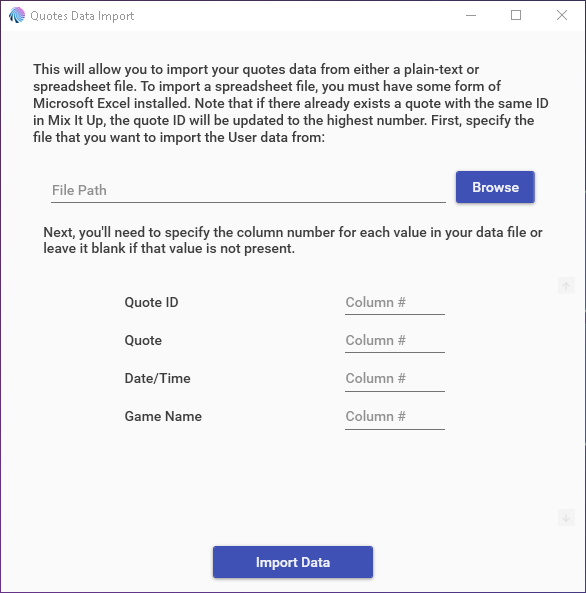
    Importing Quotes

    No matter what previous Streaming bot you came from, you can easily import your quote data from either a plain-text or spreadsheet file. When you click on the Import Quotes button, you’ll be presented with a window to select the file that contains your quote data, as well as specify what each column of that quote data corresponds to.

    NOTE: If the file you specify is a text file, each piece of data must be separated by a comma or tab character. For example, if I had a text file containing a quote IDs, quote text, and the game that was being played, my text file would look something like this:

    1,"Here's a cool quote",Fortnite 2,"And another one!",Elden Ring

    Let’s assume my data file was the example above. In this case, I would specify the values below with the following column numbers:

    • Quote ID: 1
    • Quote: 2
    • Game Name: 3

    Choose which cookies to allow. Your preference is saved for 6 months.

    Necessary
    Required for the site to function correctly. Cannot be disabled.
    Analytics
    Helps us understand how visitors use the site. No personal data is shared with third parties.