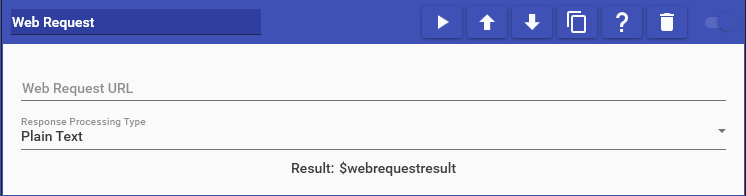
 Web Request actions allow you to call a web API and use the result to perform an additional action. Simply type in the URL you wish to call, select the HTTP method, configure optional headers and body content, then select the action to perform with the result. Requests will fail out if no response is returned after 5 seconds.
HTTP Methods
Web Request actions support the following HTTP methods:
- GET: Retrieve data from the specified endpoint
- POST: Send data to create or update resources
- PUT: Send data to update or replace resources
- DELETE: Remove resources from the endpoint
Custom Headers
You can add custom headers to your web requests to include authentication tokens, content types, or any other required header information. Headers are specified as key-value pairs.
Request Body
For POST and PUT requests, you can include a request body with the data you want to send to the API. The body content can be formatted as JSON or any other format required by the API endpoint.
Response Handling Options
This action supports the following options:
- Plain Text: The data that is returned from the API is stored in a Special Identifier called
$webrequestresult. - JSON to Special Identifiers: The JSON data returned from the API can be parsed and stored into individual Special Identifiers
JSON to Special Identifiers
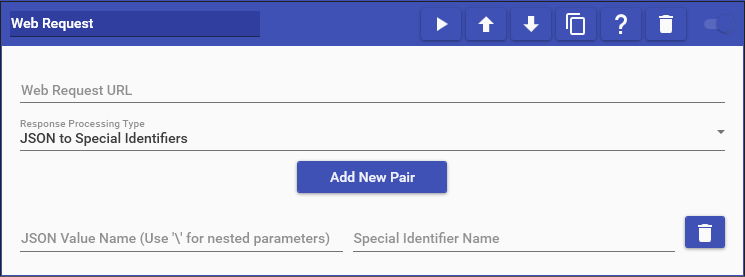 This option allows you to specifically parse out the JSON (JavaScript Object Notation) result from the Web Request and assign individual values in the JSON to Special Identifiers. Simply specify the name of the JSON value in the left box (For nested values, use a ’\’ between each level) and the name of the Special Identifier to put it in to on the right. For example, given the following JSON:
{ "first": "joe", "last": "smoe", "job": { "title": "Supervisor", "years": 10 } }
The following would be the JSON values you would use:
- First Name (“joe”): “first”
- Last Name (“smoe”): “last”
- Job Title (“Supervisor”): “job\title”
- Job Years (10): “job\years”