• General
  • Accounts
  • FAQ
  • Getting Started
  • Getting Started
  • Home
  • Tutorials
  • Usage & Requirements
  • Usage Requirements
  • Preview Program
  • Uninstall
  • Platforms
  • YouTube Overlay Widget
  • Twitch
  • Twitch Action
  • Twitch Channel Point Commands
  • Twitch Bits Commands
  • Kick
  • Kick Action
  • Kick Channel Point Commands
  • Kick Kicks Commands
  • Integrations
  • Microsoft Azure Speech
  • Lumia Stream
  • TTS.Monster
  • Pulsoid
  • Tiltify
  • TipeeeStream
  • XSplit
  • Streamlabs
  • Streamlabs
  • Streamlabs Desktop (Streamlabs OBS)
  • Infinite Album
  • Patreon
  • Streamloots
  • Streamloots Card Commands
  • Streamloots
  • mtion studio
  • OvrStream
  • VTube Studio
  • VTS P.O.G.
  • Loupedeck
  • Amazon Polly
  • Discord
  • Rainmaker
  • Responsive Voice
  • Crowd Control
  • Crowd Control Commands
  • Crowd Control
  • OBS Studio
  • JustGiving
  • Stream Deck
  • Twitter
  • Twitch Interactive Throwing System
  • StreamElements
  • TreatStream
  • SAMMI
  • Pixel Chat
  • PolyPop
  • Stream Avatars
  • IFTTT
  • Donor Drive
  • Voicemod
  • Google Cloud TTS
  • Meld Studio
  • Features
  • Moderation
  • Inventory
  • Consumables
  • Overlays
  • Custom Overlay Widget
  • End Credits Overlay Widget
  • Chat Overlay Widget
  • Video Overlay Widget
  • Label Overlay Widget
  • Image Overlay Widget
  • Stream Boss Overlay Widget
  • Overlays & Alerts
  • Overlay Widgets
  • Wheel Overlay Widget
  • Persistent Timer Overlay Widget
  • Leaderboard Overlay Widget
  • Poll Overlay Widget
  • Text Overlay Widget
  • Overlay
  • Event List Overlay Widget
  • Game Queue Overlay Widget
  • Persistent Emote Effect Overlay Widget
  • Goal Overlay Widget
  • HTML Overlay Widget
  • Quotes
  • Stream Pass
  • Giveaways
  • Chat
  • Rank
  • Actions
  • Counter Action
  • Action Groups
  • Input Action
  • Sound Action
  • Special Identifier Action
  • Script Action
  • Streaming Software Action
  • Actions
  • Group Action
  • Web Request Action
  • Text To Speech Action
  • Conditional Action
  • Random Action
  • Repeat Action
  • Wait Action
  • Serial Action
  • Consumable Action
  • File Action
  • External Program Action
  • Game Queue
  • Users
  • Events & Triggers
  • Statistics
  • Redemption Store
  • Commands
  • Command History
  • Command Action
  • Community Commands
  • Timer Commands
  • Game Commands
  • Chat Commands
  • Pre-Made Chat Commands
  • Webhook Commands
  • Commands
  • Event Commands
  • Timers
  • Currency
  • Music Player
  • Reference
  • Special Identifiers
  • Mix It Up Ambassadors
  • Services
  • Developer API
  • Integrations
  • Webhooks

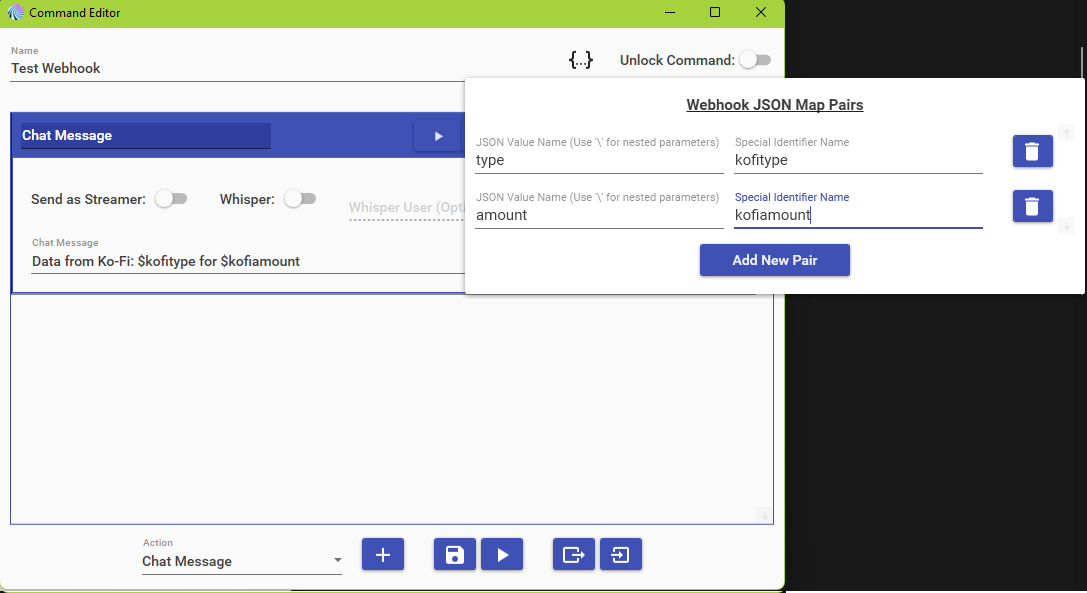
    The Webhook page allows you to register for commands to be triggered from an external web service. Currently, each user can have up to 5 webhooks. Once a webhook is created the user can add the command as desired. These commands can expect to take in JSON parameters and the JSON icon can be used to map JSON to special identifiers, similar to how the Web Request Action works.

    If you are having issues with a particular webhook, please come to our Discord and ask for help. Each implementation of webhooks is different and it may require special assistance.

    Related Special Identifier:

    • $webhookpayload = The complete payload sent from the webhook. This is mostly for debugging and isn’t expected to be used most of the time. Instead, the JSON to Special Identifier mapping should be used.

    Steps to use Webhooks

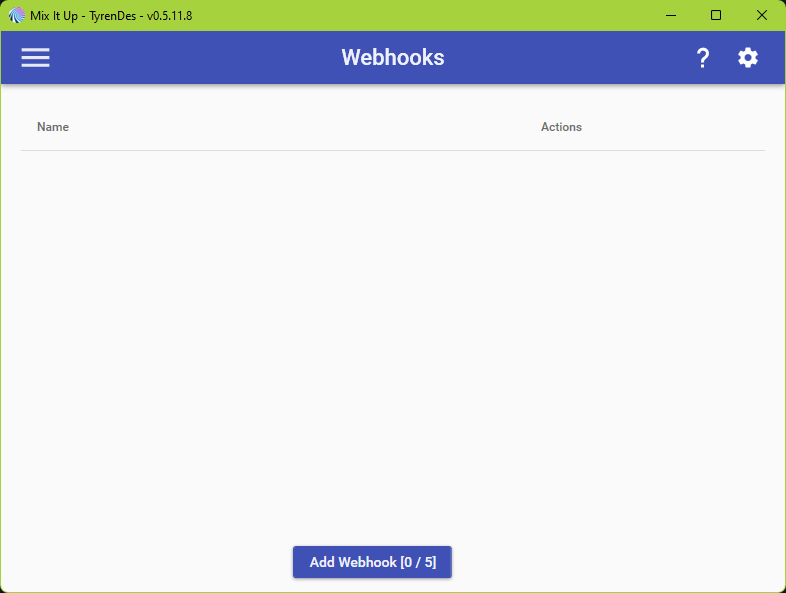
    1. Open the webhooks page.

    2. Click the “Add Webhook” button.

    Add Webhoook

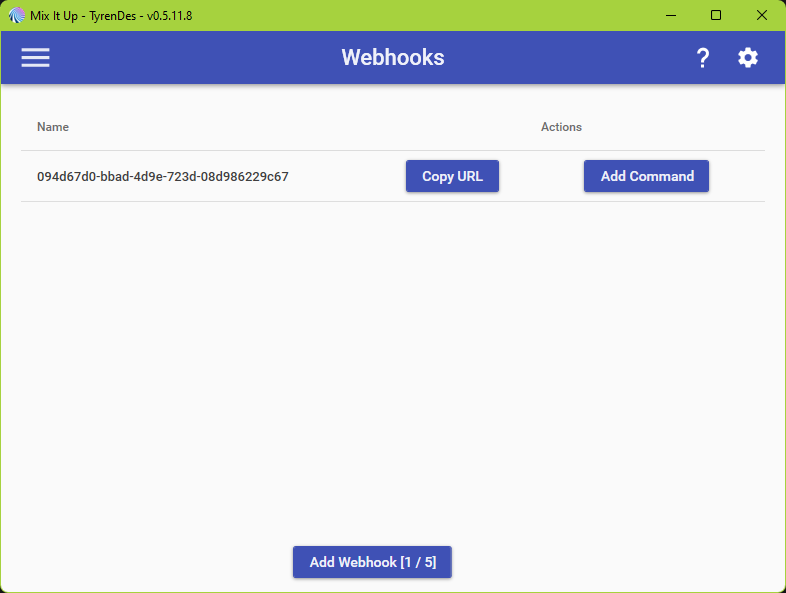
    1. Click the “Add Command” button and create your action as desired.
    Add Command

    1. If necessary, map JSON and add actions.
    Edit Command

    1. Save the command and use the “Copy URL” button to grab the trigger for the webhook.

    BE WARNED: ANYONE THAT GETS ACCESS TO THIS URL COULD TRIGGER THE ACTION! Only share this URL with trusted sources. The URL is in the form of: https://api.mixitupapp.com/api/webhook/{SomeId}?secret={SomeSecret}

    1. Go to the external website, such as KoFi and enter the necessary information. KoFi Config
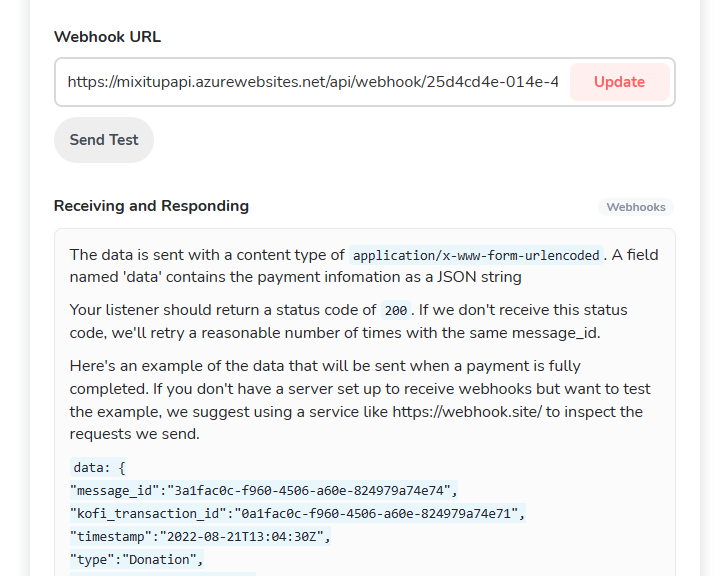
    At this point, you should be able to test the webhook and the event should trigger!

    Choose which cookies to allow. Your preference is saved for 6 months.

    Necessary
    Required for the site to function correctly. Cannot be disabled.
    Analytics
    Helps us understand how visitors use the site. No personal data is shared with third parties.