• General
  • Accounts
  • FAQ
  • Getting Started
  • Getting Started
  • Home
  • Tutorials
  • Usage & Requirements
  • Usage Requirements
  • Preview Program
  • Uninstall
  • Platforms
  • YouTube Overlay Widget
  • Twitch
  • Twitch Action
  • Twitch Channel Point Commands
  • Twitch Bits Commands
  • Kick
  • Kick Action
  • Kick Channel Point Commands
  • Kick Kicks Commands
  • Integrations
  • Microsoft Azure Speech
  • Lumia Stream
  • TTS.Monster
  • Pulsoid
  • Tiltify
  • TipeeeStream
  • XSplit
  • Streamlabs
  • Streamlabs
  • Streamlabs Desktop (Streamlabs OBS)
  • Infinite Album
  • Patreon
  • Streamloots
  • Streamloots Card Commands
  • Streamloots
  • mtion studio
  • OvrStream
  • VTube Studio
  • VTS P.O.G.
  • Loupedeck
  • Amazon Polly
  • Discord
  • Rainmaker
  • Responsive Voice
  • Crowd Control
  • Crowd Control Commands
  • Crowd Control
  • OBS Studio
  • JustGiving
  • Stream Deck
  • Twitter
  • Twitch Interactive Throwing System
  • StreamElements
  • TreatStream
  • SAMMI
  • Pixel Chat
  • PolyPop
  • Stream Avatars
  • IFTTT
  • Donor Drive
  • Voicemod
  • Google Cloud TTS
  • Meld Studio
  • Features
  • Moderation
  • Inventory
  • Consumables
  • Overlays
  • Custom Overlay Widget
  • End Credits Overlay Widget
  • Chat Overlay Widget
  • Video Overlay Widget
  • Label Overlay Widget
  • Image Overlay Widget
  • Stream Boss Overlay Widget
  • Overlays & Alerts
  • Overlay Widgets
  • Wheel Overlay Widget
  • Persistent Timer Overlay Widget
  • Leaderboard Overlay Widget
  • Poll Overlay Widget
  • Text Overlay Widget
  • Overlay
  • Event List Overlay Widget
  • Game Queue Overlay Widget
  • Persistent Emote Effect Overlay Widget
  • Goal Overlay Widget
  • HTML Overlay Widget
  • Quotes
  • Stream Pass
  • Giveaways
  • Chat
  • Rank
  • Actions
  • Counter Action
  • Action Groups
  • Input Action
  • Sound Action
  • Special Identifier Action
  • Script Action
  • Streaming Software Action
  • Actions
  • Group Action
  • Web Request Action
  • Text To Speech Action
  • Conditional Action
  • Random Action
  • Repeat Action
  • Wait Action
  • Serial Action
  • Consumable Action
  • File Action
  • External Program Action
  • Game Queue
  • Users
  • Events & Triggers
  • Statistics
  • Redemption Store
  • Commands
  • Command History
  • Command Action
  • Community Commands
  • Timer Commands
  • Game Commands
  • Chat Commands
  • Pre-Made Chat Commands
  • Webhook Commands
  • Commands
  • Event Commands
  • Timers
  • Currency
  • Music Player
  • Reference
  • Special Identifiers
  • Mix It Up Ambassadors
  • Services
  • Developer API
  • Integrations
  • Conditional Action

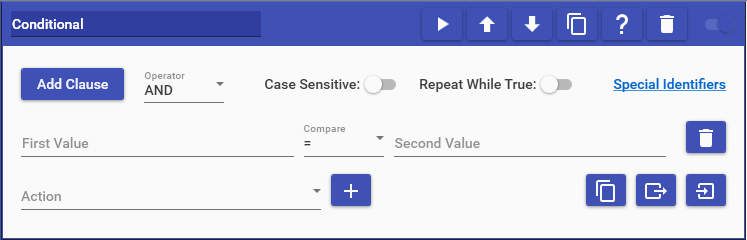
    Conditional actions allow you to compare two different values and perform a command if the condition is correct. To use this action, you specify the different values you want to compare, which can contain Special Identifiers, and the comparison type you want.

    Operators:

    • AND = All conditions must be true
    • OR = At least 1 condition must be true
    • XOR = ONLY 1 condition must be true

    Comparison Types:

    • = (Equals)
    • <> (Not Equals)
    • > (Greater Than)
    • >= (Greater Than or Equal To)
    • < (Less Than)
    • <= (Less Than or Equal To)
    • Contains (The value on the right exists inside the value on the left)
    • <> Contain (The value on the right DOES NOT exist inside the value on the left)
    • Between (The value on the left is between or is one of the two values on the right)
    • Replaced (Whether the first value changed due to Special Identifier processing) (EX: $username => Joe)
    • Not Replaced (Whether the first value DID NOT change due to Special Identifier processing) (EX: $foo either does not exist or did not have a value assigned to it)
    • Regex Match (Whether the first value matches to the regular expression specified in the second value) Regular Expression Reference
    • Is In (Whether the first value can be found inside the second value that contains the Delimited Arguments Separator
    • Is Not In (Whether the first value can not be found inside the second value that contains the Delimited Arguments Separator

    After selecting your conditions, you can select the sub-actions that you would like to run if the conditions you specified are true. If the condition is true, then the conditional action will wait until all of the sub-actions have been run before continuing on.

    When comparing values, you have the option to enable Case Sensitive when comparing values (EX: “hello” & “HELLO” would NOT be equal since they have different letter casing). You can also have the sub-actions repeated until the conditions are no longer true by enabling the Repeat While True option.

    Choose which cookies to allow. Your preference is saved for 6 months.

    Necessary
    Required for the site to function correctly. Cannot be disabled.
    Analytics
    Helps us understand how visitors use the site. No personal data is shared with third parties.