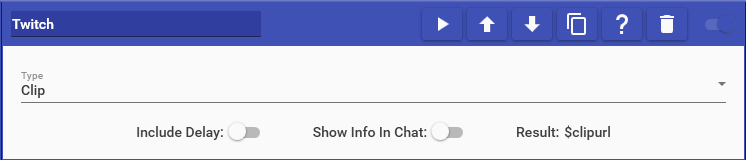
Twitch actions allow you perform actions on your Twitch channel, such as hosting, raiding, and running ads.
This action supports the following options:
- Raid: Raids the specified channel
- VIP User: VIPs the specified user. VIP can be set to be automatically removed from the user by using the Automatic Removal option. This will only occur while Mix It Up is running and lapsed durations while Mix It Up is not running will be automatically handled when Mix It Up is next launched.
- Un-VIP User: Un-VIPs the specified user.
- Run Ad: Runs ads for the requested number of seconds. Ads are not guaranteed to always run when this is triggered and may run for more or less than the specified length.
- Clip: Create clips between 5 and 60 seconds (Default 30 secs) of your stream and provides the Special Identifier
$clipurlwhich contains the URL of the clip created. Optionally provide your own clip title and duration (5 secs to 60 secs; default is 30 if left empty) - Stream Marker: Places a marker at the current time in your stream.
- Create Poll: Starts a poll in your channel. Actions can be added to be run when the poll has completed and the Special Identifier
$pollchoicecan be used in them for the highest voice choice for the poll. - Create Prediction: Starts a prediction in your channel. Actions can be added to be run when the prediction has completed and the Special Identifier
$predictionoutcomecan be used in them for the winning outcome of the prediction. - Update Channel Point Reward: Updates a Channel Point Reward in your stream. This can only be performed on Channel Point Rewards created by Mix It Up on the Channel Point Reward Commands page.
- Enable Emote Only: Enables emote-only mode in your channel.
- Disable Emote Only: Disables emote-only mode in your channel.
- Enable Followers Only: Enables follower-only mode in your channel where users must have been following the channel for at least X many minutes to participate.
- Disable Followers Only: Disables follower-only mode in your channel.
- Enable Slow Chat: Enables slow chat in your channel where users can only send messages every X many seconds.
- Disable Slow Chat: Disables slow chat in your channel.
- Enable Subscribers Chat: Enables subscriber-only mode in your channel.
- Disable Subscribers Chat: Disables subscriber-only mode in your channel.
- Set Title: Sets the title for the channel.
- Set Game: Sets the game/category for the channel.
- Set Custom Tags: Sets the custom tags for the channel.
- Send Announcement: Sends an announcement for the channel.
- Send Shoutout: Sends a shoutout for a specific user for the channel.
- Snooze Next Ad: Attempts to snooze the next upcoming automatic ad, if there are enough snoozes available. No error will be indicated if this fails.
- Warn User: Sends an official Twitch warning to a viewer. The user has to acknowledge it before they can chat again.
- Shield Mode On: Activates Shield Mode on your channel, applying your pre-configured Twitch chat protections.
- Shield Mode Off: Deactivates Shield Mode and restores your normal chat settings.
- Pin Message: Sends a chat message and immediately pins it to the top of chat for 20 minutes.
- Unpin Message: Unpins the currently pinned message from chat.
- Set Suspicious User Status: Marks a viewer as suspicious. Their chat will either be monitored or restricted (messages hidden by default).
- Remove Suspicious User Status: Clears a viewer’s suspicious status so they’re treated as a regular chatter again.
- Block User: Blocks a viewer from your Twitch account. Hides their whispers and prevents follows, gifts, watching your stream, and other interactions. Note: their chat messages can still appear in your channel chat (use Ban or Timeout for that).
- Unblock User: Removes a viewer from your blocked list.