• General
  • Getting Started
  • Getting Started
  • Tutorials
  • Preview Program
  • Uninstall
  • Accounts
  • FAQ
  • Platforms
  • Twitch
  • Twitch
  • Twitch Action
  • Twitch Channel Point Commands
  • Twitch Bits Commands
  • Twitch Custom Power Up Commands
  • YouTube
  • YouTube
  • YouTube Action
  • Kick
  • Kick
  • Kick Action
  • Kick Channel Point Commands
  • Kick Kicks Commands
  • Integrations
  • Amazon Polly
  • Crowd Control
  • Crowd Control
  • Crowd Control Commands
  • Discord
  • Discord
  • Discord Action
  • DonorDrive
  • Google Cloud TTS
  • IFTTT
  • IFTTT
  • IFTTT Action
  • JustGiving
  • Loupedeck
  • Lumia Stream
  • Lumia Stream
  • Lumia Stream Action
  • Meld Studio
  • Meld Studio
  • Meld Studio Action
  • Microsoft Azure Speech
  • mtion studio
  • mtion studio
  • mtion studio Action
  • OBS Studio
  • Patreon
  • PixelChat
  • PixelChat
  • Pixel Chat Action
  • PolyPop
  • PolyPop
  • PolyPop Action
  • Pulsoid
  • Rainmaker
  • ResponsiveVoice
  • SAMMI
  • SAMMI
  • SAMMI Action
  • Stream Avatars
  • Stream Deck
  • StreamElements
  • Streamlabs
  • Streamlabs Desktop
  • Streamlabs Desktop
  • Streamlabs Action
  • Streamloots
  • Streamloots
  • Streamloots Card Commands
  • Tiltify
  • TipeeeStream
  • TITS
  • TITS
  • Twitch Integrated Throwing Action
  • TreatStream
  • TTS.Monster
  • Twitter / X
  • Voicemod
  • Voicemod
  • Voicemod Action
  • VTS Pog
  • VTS Pog
  • VTS P.O.G. Action
  • VTube Studio
  • VTube Studio
  • VTube Studio Action
  • XSplit
  • Features
  • Commands
  • Commands
  • Chat Commands
  • Pre-Made Chat Commands
  • Event Commands
  • Timer Commands
  • Game Commands
  • Webhook Commands
  • Community Commands
  • Action Groups
  • Usage Requirements
  • Command History
  • Actions
  • Actions
  • Chat Action
  • Command Action
  • Conditional Action
  • Consumable Action
  • Counter Action
  • External Program Action
  • File Action
  • Game Queue Action
  • Group Action
  • Input Action
  • Moderation Action
  • Music Player Action
  • Overlay Action
  • Random Action
  • Repeat Action
  • Script Action
  • Serial Action
  • Sound Action
  • Special Identifier Action
  • Streaming Software Action
  • Text To Speech Action
  • Wait Action
  • Web Request Action
  • Overlays
  • Overlays
  • Overlay Widgets
  • Chat Widget
  • Custom Widget
  • End Credits Widget
  • Event List Widget
  • Game Queue Widget
  • Goal Widget
  • HTML Widget
  • Image Widget
  • Label Widget
  • Leaderboard Widget
  • Persistent Emote Effect Widget
  • Persistent Timer Widget
  • Poll Widget
  • Stream Boss Widget
  • Text Widget
  • Video Widget
  • Wheel Widget
  • YouTube Widget
  • Consumables
  • Consumables
  • Currency
  • Rank
  • Inventory
  • Stream Pass
  • Redemption Store
  • Chat
  • Users
  • Moderation
  • Game Queue
  • Giveaways
  • Quotes
  • Music Player
  • Statistics
  • Reference
  • Special Identifiers
  • Developer API
  • musicplayer.png

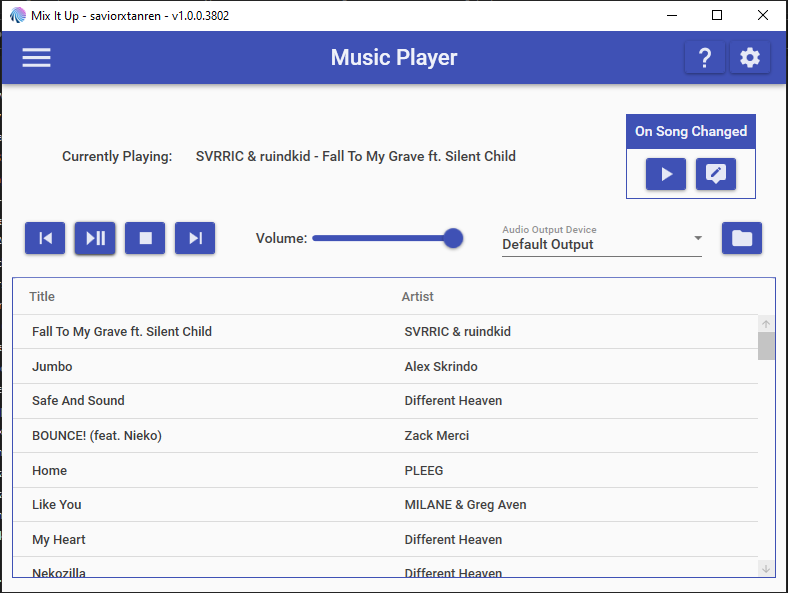
    The Music Player allows you to play your locally download music and control it via the Music Player Action. Music can be loaded by navigating to the Music Player page and clicking on the Folder icon on the right-side. From there, select the folder that has your music in it and Mix It Up will automatically load in all valid music files from that folder and all direct sub-folders. Each time music is loaded in to the Music Player, the order of the songs are randomized.

    The following are the list of support music file formats:

    • MP3
    • WAV
    • FLAC
    • MP4
    • M4A
    • AAC

    The following Special Identifiers can be used through the app for information about the Music Player feature:

    • $musicplayertitle - The title of the currently playing song.
    • $musicplayerartist - The artist of the currently playing song.
    • $musicplayerdisplay - The full display information of the currently playing song, either containing both the artist and title if it had an artist or just the title otherwise.
    • $musicplayerstate - The current state of the music player, will be one of the following values: Stopped, Playing, Paused
    • $musicplayerlength - The raw length of the playing song in seconds (EX: 245)
    • $musicplayerduration - The formatted length of the playing song (EX: 4:05)

    Recommended Music Sites

    Below are a list of websites that we recommend to use for music, as the both allow for playing through your stream without worry for copyright claims and allow you to download the music locally on to your computer:

    If there are additional sites that you know about and would like to recommend, please reach out to us in our Discord support server and we’ll be happy to add more to the list!

    Additional Music Providers

    Didn’t find specific music you were looking for? Below are some additional music providers that you can use separately from Mix It Up that also have safe copyright usage for streams through their own app / service:

    Why not YouTube / Spotify?

    A common question that is asked is why the Music Player service does not allow for integration with YouTube or Spotify. The reason for this comes down to the Terms of Services for both, which do not allow the re-broadcasting of content from their services (IE, you are not allows to play music from them in your stream). You can find detailed information at the link below related to why our initial Song Requests feature was removed in the past due to those same reasons:

    Song Requests Removal


    Music Player Action

    musicplayeraction.png

    The Music Player Action allows you to control the Music Player service in Mix It Up.

    This action supports the following options:

    • Play/Pause: Plays or pauses the current song based on the current state.
    • Play: Plays the current song.
    • Play Specific Song: Searches for a song with a title containing the specified text and plays the song with the closest matching title.
    • Pause: Pauses the currently playing song.
    • Stop: Stops the currently playing song and sets the time for it back to the start.
    • Next: Plays the next song in the list.
    • Previous: Plays the previous song in the list.
    • Change Volume: Changes the current volume of the Music Player.
    • Change Folder: Changes the current folder for songs and loads in all of the songs in from that folder path.

    Choose which cookies to allow. Your preference is saved for 6 months.

    Necessary
    Required for the site to function correctly. Cannot be disabled.
    Analytics
    Helps us understand how visitors use the site. No personal data is shared with third parties.
