The Pixel Chat service allow you to connect to your Pixel Chat account and control your overlays. To connect the service, head to the Dev Tokens webpage on Pixel Chat’s website (See the link inside the Pixel Chat section of the Services page in Mix It Up) to generate a Dev Token. Copy the Dev Token into the text box in Mix It Up and click Log In.
To interact with Pixel Chat, you would add a Pixel Chat Action to your command.
Pixel Chat Action
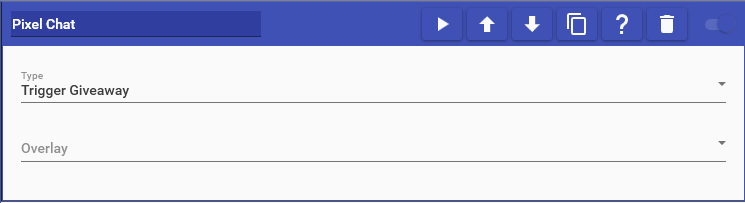
Pixel Chat actions allow you to control your Pixel Chat overlay. To connect the Pixel Chat service, see the Pixel Chat Service connection information.
This action supports the following options:
- Show/Hide Scene Component: You can show/hide components in your scene overlays that you have set up.
- Trigger Giveaway: Run a specific Giveaway overlay.
- Trigger Credits: Run a specific Credits overlay.
- Trigger Shoutout: Run a specific Shoutout overlay and specify the name of the user to shout out.
- Trigger Count Down: Run a specific Count Down overlay and specify the amount of seconds to count for.
- Trigger Count Up: Run a specific Giveaway overlay and specify the amount of seconds to count for.
- Start Streamathaon: Start a specific Streamathon overlay.
- Add Streamathaon Time: Add time to the currently running Streamathon overlay.
- Add User To Giveaway: Add a specific user to the currently running Giveaway overlay.