• General
  • Getting Started
  • Getting Started
  • Tutorials
  • Preview Program
  • Uninstall
  • Accounts
  • FAQ
  • Platforms
  • Twitch
  • Twitch
  • Twitch Action
  • Twitch Channel Point Commands
  • Twitch Bits Commands
  • Twitch Custom Power Up Commands
  • YouTube
  • YouTube
  • YouTube Action
  • Kick
  • Kick
  • Kick Action
  • Kick Channel Point Commands
  • Kick Kicks Commands
  • Integrations
  • Amazon Polly
  • Crowd Control
  • Crowd Control
  • Crowd Control Commands
  • Discord
  • Discord
  • Discord Action
  • DonorDrive
  • Google Cloud TTS
  • IFTTT
  • IFTTT
  • IFTTT Action
  • JustGiving
  • Loupedeck
  • Lumia Stream
  • Lumia Stream
  • Lumia Stream Action
  • Meld Studio
  • Meld Studio
  • Meld Studio Action
  • Microsoft Azure Speech
  • mtion studio
  • mtion studio
  • mtion studio Action
  • OBS Studio
  • Patreon
  • PixelChat
  • PixelChat
  • Pixel Chat Action
  • PolyPop
  • PolyPop
  • PolyPop Action
  • Pulsoid
  • Rainmaker
  • ResponsiveVoice
  • SAMMI
  • SAMMI
  • SAMMI Action
  • Stream Avatars
  • Stream Deck
  • StreamElements
  • Streamlabs
  • Streamlabs Desktop
  • Streamlabs Desktop
  • Streamlabs Action
  • Streamloots
  • Streamloots
  • Streamloots Card Commands
  • Tiltify
  • TipeeeStream
  • TITS
  • TITS
  • Twitch Integrated Throwing Action
  • TreatStream
  • TTS.Monster
  • Twitter / X
  • Voicemod
  • Voicemod
  • Voicemod Action
  • VTS Pog
  • VTS Pog
  • VTS P.O.G. Action
  • VTube Studio
  • VTube Studio
  • VTube Studio Action
  • XSplit
  • Features
  • Commands
  • Commands
  • Chat Commands
  • Pre-Made Chat Commands
  • Event Commands
  • Timer Commands
  • Game Commands
  • Webhook Commands
  • Community Commands
  • Action Groups
  • Usage Requirements
  • Command History
  • Actions
  • Actions
  • Chat Action
  • Command Action
  • Conditional Action
  • Consumable Action
  • Counter Action
  • External Program Action
  • File Action
  • Game Queue Action
  • Group Action
  • Input Action
  • Moderation Action
  • Music Player Action
  • Overlay Action
  • Random Action
  • Repeat Action
  • Script Action
  • Serial Action
  • Sound Action
  • Special Identifier Action
  • Streaming Software Action
  • Text To Speech Action
  • Wait Action
  • Web Request Action
  • Overlays
  • Overlays
  • Overlay Widgets
  • Chat Widget
  • Custom Widget
  • End Credits Widget
  • Event List Widget
  • Game Queue Widget
  • Goal Widget
  • HTML Widget
  • Image Widget
  • Label Widget
  • Leaderboard Widget
  • Persistent Emote Effect Widget
  • Persistent Timer Widget
  • Poll Widget
  • Stream Boss Widget
  • Text Widget
  • Video Widget
  • Wheel Widget
  • YouTube Widget
  • Consumables
  • Consumables
  • Currency
  • Rank
  • Inventory
  • Stream Pass
  • Redemption Store
  • Chat
  • Users
  • Moderation
  • Game Queue
  • Giveaways
  • Quotes
  • Music Player
  • Statistics
  • Reference
  • Special Identifiers
  • Developer API
  • Discord Action

    Discord actions allow you to interact with your logged in Discord server via either the Mix It Up Discord bot or your own custom Discord bot.

    This action supports the following options:

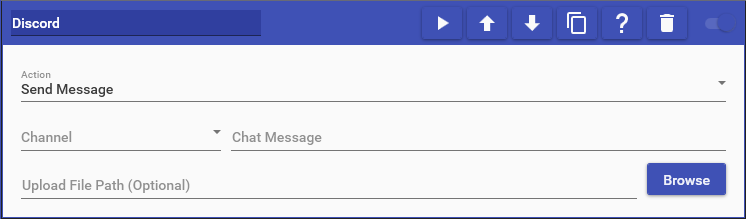
    • Send Message: Allows you to send a message to a Discord channel and can include Special Identifiers in your message. You can also additionally supply the path to a file to upload alongside your message.
    • Mute/Unmute Self: Allows you to mute/unmute your microphone in your Discord server.
    • Deafen/Undeafen Self: Allows you to deafen/undeafen your sound output in your Discord server, which will effectively mute any sound coming from Discord.
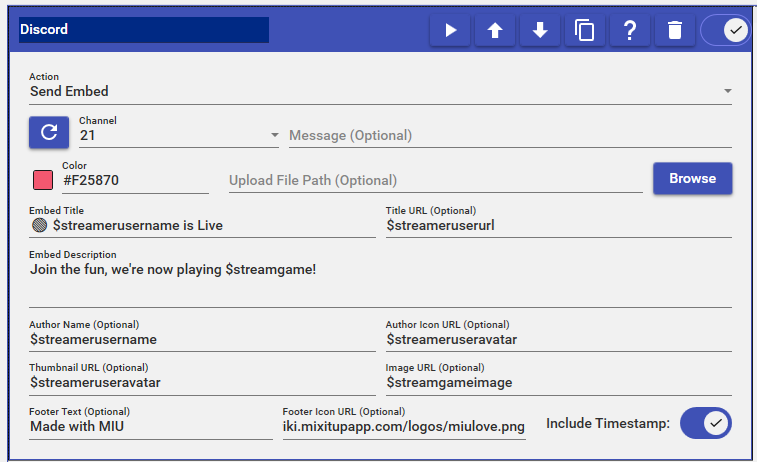
    • Send Embed Allows you to send an Embed message to a Discord channel and can include Special Identifiers in your message. You can also additionally supply the path to a file to upload alongside your message.

    Tagging Discord Roles

    Tagging a custom role in Discord is possible, but you must use the ID of the role as opposed to the name of the role. To get access to the ID for a role, you must first enable the Developer Mode option in the User Settings menu under App Settings -> Advanced. Once this is enabled, head to your server’s role list in the Server Settings menu under Roles. Right-click the role you are looking to tag and select “Copy ID”.

    Tagging a custom role by its ID uses the format <@&roleid>, where “roleid” is the ID that was copied from the Roles menu for your server settings. For example, if your role ID was “1234”, then you would use the following to tag that role: <@&1234>

    NOTE: The steps above are for custom roles. To tag default roles like everyone or here, simply type @everyone or @here without using the role ID.

    Messages Not Sending

    Messages failing to send usually mean it is a permission issue in your server. The bot must at least have the “View Channel” and “Send Messages” permissions in its role especially when posting in private or locked channels like #announcements or #going-live.

    A simple test would be to grant the bot administrator permissions in your server and test again. If it works now, it was a permission issue. You will need to check the role permissions for the specific channel settings as well as the roles section in your server settings. Now scale back the permissions as needed as it is bad practice to grant administrator permissions unless absolutely required to function, and the MIU Discord bot does not require them. If you need additional assistance, join our Discord server.

    Embed Messages

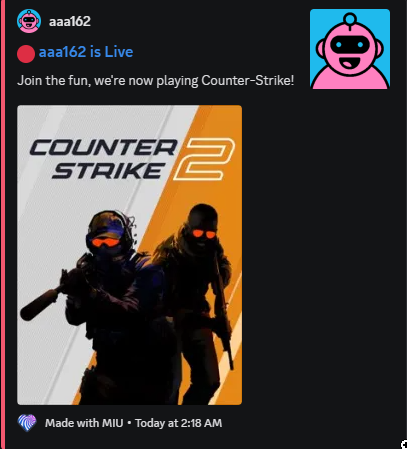
    Sending an embed message on Discord is very simple. Many of the fields will have (optional) labels, and those do not need to have anything in there if you dont want. Below is an example of the Discord action and the result that is sent to the Discord channel. discord_zi0heuytrh.pngdiscord_f1tc7q02pe.png
    Choose which cookies to allow. Your preference is saved for 6 months.

    Necessary
    Required for the site to function correctly. Cannot be disabled.
    Analytics
    Helps us understand how visitors use the site. No personal data is shared with third parties.