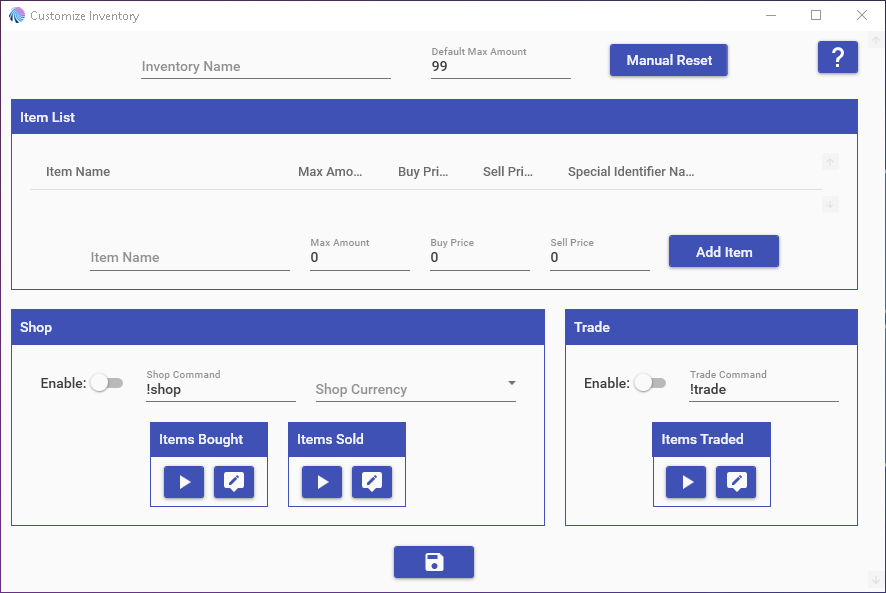
Inventories are intended to let you set up a set of items that users in your channel can acquire & use. Unlike currencies & ranks, there is no rate at which items are acquired by users. Instead, items are added or removed from a user by using either the Currency/Rank/Inventory Action or by using a Inventory Usage Requirement.
Inventories have an additional feature to them known as the shop. The shop is meant to be a means to let your users buy & sell items using a currency that you have set. You have the ability to set the buy & sell cost for all items; items can only be bought/sold if their respective buy/sell cost is set. Users can also trade items with each other using the built-in trade command.
NOTE: The maximum number for any currency, rank, inventory, or stream pass value is 2,147,483,647.
Shop
The Shop command allows your users to buy & sell items with Mix It Up (not with other users). To enable the Shop, simply toggle the switch next to it and assign a currency to that shop that users will spend/receive for the items. For an item to be available for buying and/or selling, you must assign a buy and/or sell price for it; you are not required to assign a number for both. For example, you could have an item that is only buyable, but not sellable and vice-versa.
The Shop command supports the following options (assuming your shop called is called “!shop”):
- !shop list = List all the items available for buying/selling
- !shop < ITEM NAME > = Lists the buy/sell price for the specified item
- !shop buy < ITEM NAME > [ AMOUNT ] = Buys 1 or the amount specified of the item
- !shop sell < ITEM NAME > [ AMOUNT ] = Sells 1 or the amount specified of the item
Special Identifiers
Inventory Special Identifiers are ways to reference a user’s inventory item amounts. The actual Special Identifiers for your Inventory will be different for every single one, as they vary based off of the name. However they do fit into a per-determined format. These can also be used with other Special Identifiers that work for users such as Target, Argument, Streamer, & Random (EX: $targetuser____)
For example, if I have a Inventory named “Power”, then all of the ____‘s below would be replaced with “power”. If the name of your Inventory has spaces in it, then those spaces will NOT be in it (EX: “Super Power” -> “superpower”).
- $user____< ITEM > = The amount of a specific item that a user has. For example, if my inventory is called “Items” and the item I want to check is called “Potions”, I would use “$useritemspotions”. (EX: 200).
- $user____< ITEM >display = The amount of a specific item that the user has in a display-friendly format. (EX: 20,000)
- $user____all = Lists out all of the items that the user has and the total amount of each. (EX: Potion x2, Revive x5, …)
- $user____randomitem = The name of an item selected randomly from the all items that a user has for the inventory. (EX: “Potion”)
- $user____uniqueitemstotal = The total number of unique items that the user has for the inventory. (EX: 17)
- $user____itemstotal = The total number of items the user has for the inventory (EX: 54)
- $____randomitem = The name of an item selected randomly from all possibly items in the inventory. (EX: “Potion”)
- $____uniqueitemstotal = The total number of unique items that exist in the inventory. (EX: 17)
- $____allitems = Returns the list of all the items in the inventory (EX: ItemA, ItemB, ItemC)
Top
-
$top#____ = Top # users by specific item amount. For example, if my inventory is called “Power” and the item I want to check is called “Potion”, I would use “$top3powerpotion”. (EX: #1) User1 - 10, #2) User2 - 8, #3) User3 - 5)
-
$top#____total = Top # users by total items in inventory. (EX: $top3powertotal -> #1) User1 - 45, #2) User2 - 32, #3) User3 - 28)
-
$top#____unique = Top # users by unique item types owned. (EX: $top5powerunique -> #1) User1 - 12, #2) User2 - 10, #3) User3 - 8)
-
$top____totaluser = Get user data of #1 user by total items. Can be combined with user special identifiers. (EX: $toppowertotalusername -> “User1”)
-
$top____uniqueuser = Get user data of #1 user by unique items. Can be combined with user special identifiers. (EX: $toppoweruniqueusername -> “User1”)