• General
  • Getting Started
  • Getting Started
  • Tutorials
  • Preview Program
  • Uninstall
  • Accounts
  • FAQ
  • Platforms
  • Twitch
  • Twitch
  • Twitch Action
  • Twitch Channel Point Commands
  • Twitch Bits Commands
  • Twitch Custom Power Up Commands
  • YouTube
  • YouTube
  • YouTube Action
  • Kick
  • Kick
  • Kick Action
  • Kick Channel Point Commands
  • Kick Kicks Commands
  • Integrations
  • Amazon Polly
  • Crowd Control
  • Crowd Control
  • Crowd Control Commands
  • Discord
  • Discord
  • Discord Action
  • DonorDrive
  • Google Cloud TTS
  • IFTTT
  • IFTTT
  • IFTTT Action
  • JustGiving
  • Loupedeck
  • Lumia Stream
  • Lumia Stream
  • Lumia Stream Action
  • Meld Studio
  • Meld Studio
  • Meld Studio Action
  • Microsoft Azure Speech
  • mtion studio
  • mtion studio
  • mtion studio Action
  • OBS Studio
  • Patreon
  • PixelChat
  • PixelChat
  • Pixel Chat Action
  • PolyPop
  • PolyPop
  • PolyPop Action
  • Pulsoid
  • Rainmaker
  • ResponsiveVoice
  • SAMMI
  • SAMMI
  • SAMMI Action
  • Stream Avatars
  • Stream Deck
  • StreamElements
  • Streamlabs
  • Streamlabs Desktop
  • Streamlabs Desktop
  • Streamlabs Action
  • Streamloots
  • Streamloots
  • Streamloots Card Commands
  • Tiltify
  • TipeeeStream
  • TITS
  • TITS
  • Twitch Integrated Throwing Action
  • TreatStream
  • TTS.Monster
  • Twitter / X
  • Voicemod
  • Voicemod
  • Voicemod Action
  • VTS Pog
  • VTS Pog
  • VTS P.O.G. Action
  • VTube Studio
  • VTube Studio
  • VTube Studio Action
  • XSplit
  • Features
  • Commands
  • Commands
  • Chat Commands
  • Pre-Made Chat Commands
  • Event Commands
  • Timer Commands
  • Game Commands
  • Webhook Commands
  • Community Commands
  • Action Groups
  • Usage Requirements
  • Command History
  • Actions
  • Actions
  • Chat Action
  • Command Action
  • Conditional Action
  • Consumable Action
  • Counter Action
  • External Program Action
  • File Action
  • Game Queue Action
  • Group Action
  • Input Action
  • Moderation Action
  • Music Player Action
  • Overlay Action
  • Random Action
  • Repeat Action
  • Script Action
  • Serial Action
  • Sound Action
  • Special Identifier Action
  • Streaming Software Action
  • Text To Speech Action
  • Wait Action
  • Web Request Action
  • Overlays
  • Overlays
  • Overlay Widgets
  • Chat Widget
  • Custom Widget
  • End Credits Widget
  • Event List Widget
  • Game Queue Widget
  • Goal Widget
  • HTML Widget
  • Image Widget
  • Label Widget
  • Leaderboard Widget
  • Persistent Emote Effect Widget
  • Persistent Timer Widget
  • Poll Widget
  • Stream Boss Widget
  • Text Widget
  • Video Widget
  • Wheel Widget
  • YouTube Widget
  • Consumables
  • Consumables
  • Currency
  • Rank
  • Inventory
  • Stream Pass
  • Redemption Store
  • Chat
  • Users
  • Moderation
  • Game Queue
  • Giveaways
  • Quotes
  • Music Player
  • Statistics
  • Reference
  • Special Identifiers
  • Developer API
  • Chat Overlay Widgets allow you to display the chat messages from your stream on your video. As users send messages in your chat, they will automatically appear on your Overlay.

    If a user is timed out, banned, or their message is deleted, the message(s) for the user will automatically be removed from the display.

    Chat Message Settings

    The Delay Time option allows you to delay how quickly a message gets shown. This can be useful to avoid displaying messages right away if there are concerns over moderators reviewing messages before they can displayed on your video.

    The Removal Time option allows you to set how soon after being shown that the message will be removed. This can be useful if you want to avoid the clutter of having chat message constantly be displayed on your video.

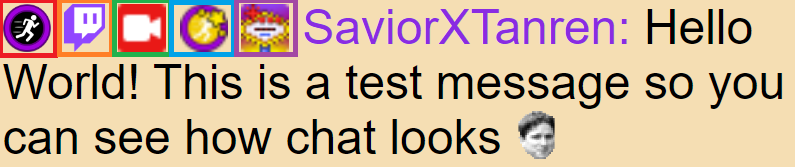
    Specific badges can be shown/hidden depending on the options selected. Below are the list of badge types and how they look when displayed:

    • User Avatar (Must be hidden manually by editing the HTML & Javascript)
    • Platform Badge
    • Role Badge
    • Subscriber Badge
    • Specialty Badge

    overlaywidgetchatmessagesettings.png

    Additionally Alejo pronouns can be shown for users that have set their pronouns on the service. Alejo pronouns must be enabled under Settings -> Chat to use this.

    Messages can be hidden from specific users by either of the following options:

    • Toggling the “Ignore Specialty Excluded Users” to hide all users that are marked as Specialty Excluded in Mix It Up
    • Specifying specific usernames in the “Usernames to Ignore” text box. Text entered in here must match exactly to the username for that user, which is not the same as their display name. For YouTube users, you must use the name shown for them in YouTube chat.

    Streaming Platform Selection

    By default, chat messages from all streaming platforms will be displayed. However specific platforms can be selected and un-selected from being shown. This could be due to user restrictions on the platform that prevent showing chat messages from other platforms or to have multiple Chat Overlay Widgets that show messages from each platform individually.

    Choose which cookies to allow. Your preference is saved for 6 months.

    Necessary
    Required for the site to function correctly. Cannot be disabled.
    Analytics
    Helps us understand how visitors use the site. No personal data is shared with third parties.