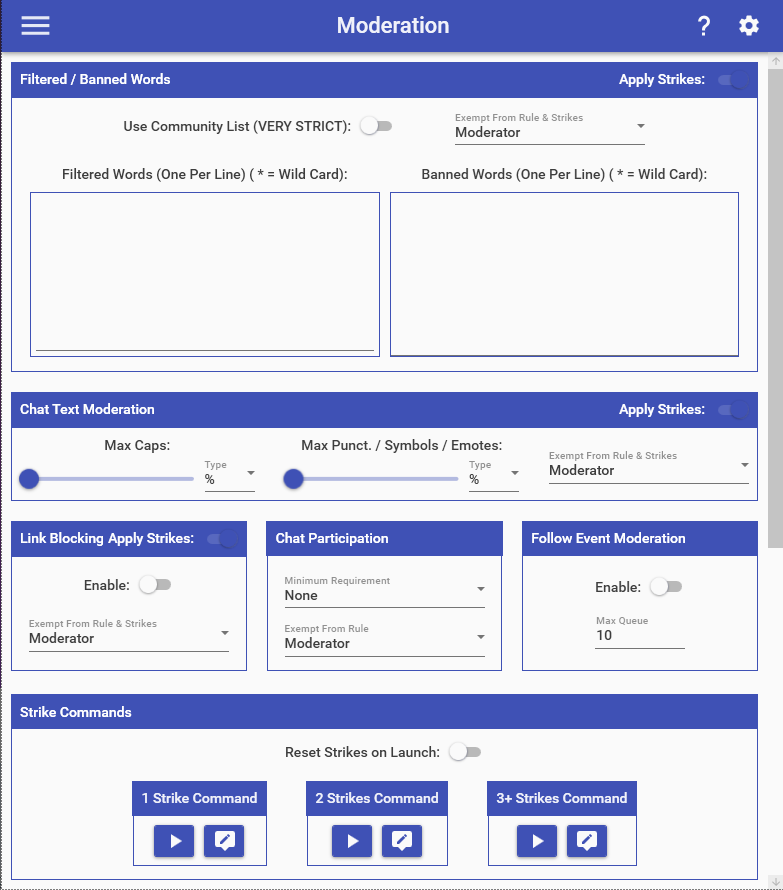
The moderation feature allows you to auto-moderate your chat with a variety of tools:
Filtered/Banned Words
The Filtered/Banned word lists allow you to specify a word or phrase that will be looked for in every chat message. The filtered and banned words look for the word or phrase inside of the message. Moderation will only trigger if the word is found in the chat message with spaces around it or if it is at the beginning/end of the message.
For example, if I use the phrase “smoking weed”, here are some examples of when it WOULD and WOULD NOT trigger:
- “smoking weed” -> DELETED
- “I am smoking weed” -> DELETED
- “smokingly weed” -> IGNORED
- “IAmSmokingWeed” -> IGNORED
For our moderation of filtered & banned words, we want to error on the side of caution and not accidentally moderate a message that should not have been. (EX: The word “ass” is added to the filtered list, someone types in chat “bass”)
The Community List feature uses a VERY strict set of filtered word that we maintain. This should only be used if you are attempting to maintain a very, family-friendly stream. The list of words for this can be found here: Community Filtered Words
The filtered Words list are words that will be auto-deleted when they are detected. The banned word list are words that will be auto-deleted AND cause the user to be automatically banned from the channel when they are detected. This banned word list feature should be used only if you are 100% sure you never want a word said in your chat. You may specify who is exempt from this moderation, which includes all users who have a higher role.
Chat Text Moderation
- Max caps auto-deletes a message if it contains too many capital letters.
- Max Symbols/Punctuation/Emotes auto-deletes a message if it contains too many keyboard symbols, punctuation characters, or emotes. Essentially, any non-letter & non-number character falls into this category.
Each moderation option allows you to select one of the following:
- Whether a minimum number of the specified item must exist before moderation takes place (EX: You can not have more than 5 emotes in a message).
- Whether a certain percentage of the specified item must exist before moderation takes place (EX: Your message can not be more than 20% emotes). If a message contains less than 5 characters, it will not be checked.
You may specify who is exempt from this moderation, which includes all users who have a higher role.
Website Link Blocking
Block Links auto-deletes any message that contains a web URL in it. You may specify who is exempt from this moderation, which includes all users who have a higher role.
Chat Participation
Chat Participation specifies who is allowed to participate in chat for your stream. This is checked before messages/commands are processed in our system and a user’s message/command is blocked if they do not meet the requirement.
Follow Event Moderation
Follow Event Moderation ensure that only so many follow events are allowed to be queued up at a time. If enabled, the amount specified is the max amount of follow event commands that can be queued up to be run at once. If a follow event occurs while the queued up amount is equal to the max amount, the follow event is ignored.
Strike Commands
The Strike Commands are run whenever a user received a strike for one of the above moderation offenses. By default, these commands only warn the user that they have received a strike, inform them why they received it, and tell them how many strikes they have. This is done by using the User Special Identifiers and the following additional Special Identifiers:
- $moderationreason = The reason why a moderation action was taken against the user. Can be used in any of the Moderation Strike commands. For filtered/banned words, this will include the word in question. (EX: “The following word is not allowed: bad”)
You may add additional actions to be performed for the user if you so choose. For example, if a user receives 2 strikes, they may be timed out by using the Moderation Action
Moderation Action
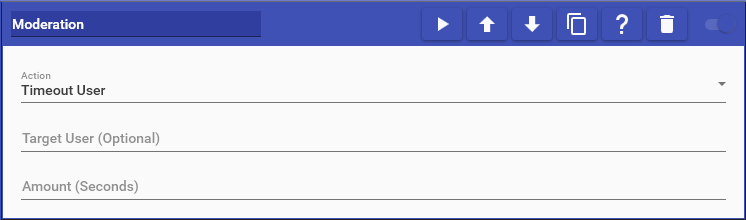
Moderation actions allow you to perform specific moderation-based actions on a user or the channel. This includes things like timing a user out from chat, clearing chat, or banning a user. You may also add or remove moderation strikes from a user. The selected user must be present in chat at the time of the action for moderation to be taken place against them. For more information about moderation strikes, see the Moderation Page.
This action supports the following options:
- Timeout User: Times out the user for the specified number of seconds
- Purge User: Purges the user’s messages from chat
- Clear Chat: Clears all messages from chat
- Ban User: Bans the user from your channel
- Unban User: Unbans the user from your channel
- Mod User: Mods the user in your channel
- Unmod User: Unmods the user in your channel
- Add Moderation Strike: Adds a moderation strike to the user
- Remove Moderation Strike: Removes a moderation strike from the user
- Disable Chat: Disables chat in the channel by deleting all messages that are sent
- Enable Chat: Enables chat in the channel by no longer deleting all messages that are sent