• General
  • Getting Started
  • Getting Started
  • Tutorials
  • Preview Program
  • Uninstall
  • Accounts
  • FAQ
  • Platforms
  • Twitch
  • Twitch
  • Twitch Action
  • Twitch Channel Point Commands
  • Twitch Bits Commands
  • Twitch Custom Power Up Commands
  • YouTube
  • YouTube
  • YouTube Action
  • Kick
  • Kick
  • Kick Action
  • Kick Channel Point Commands
  • Kick Kicks Commands
  • Integrations
  • Amazon Polly
  • Crowd Control
  • Crowd Control
  • Crowd Control Commands
  • Discord
  • Discord
  • Discord Action
  • DonorDrive
  • Google Cloud TTS
  • IFTTT
  • IFTTT
  • IFTTT Action
  • JustGiving
  • Loupedeck
  • Lumia Stream
  • Lumia Stream
  • Lumia Stream Action
  • Meld Studio
  • Meld Studio
  • Meld Studio Action
  • Microsoft Azure Speech
  • mtion studio
  • mtion studio
  • mtion studio Action
  • OBS Studio
  • Patreon
  • PixelChat
  • PixelChat
  • Pixel Chat Action
  • PolyPop
  • PolyPop
  • PolyPop Action
  • Pulsoid
  • Rainmaker
  • ResponsiveVoice
  • SAMMI
  • SAMMI
  • SAMMI Action
  • Stream Avatars
  • Stream Deck
  • StreamElements
  • Streamlabs
  • Streamlabs Desktop
  • Streamlabs Desktop
  • Streamlabs Action
  • Streamloots
  • Streamloots
  • Streamloots Card Commands
  • Tiltify
  • TipeeeStream
  • TITS
  • TITS
  • Twitch Integrated Throwing Action
  • TreatStream
  • TTS.Monster
  • Twitter / X
  • Voicemod
  • Voicemod
  • Voicemod Action
  • VTS Pog
  • VTS Pog
  • VTS P.O.G. Action
  • VTube Studio
  • VTube Studio
  • VTube Studio Action
  • XSplit
  • Features
  • Commands
  • Commands
  • Chat Commands
  • Pre-Made Chat Commands
  • Event Commands
  • Timer Commands
  • Game Commands
  • Webhook Commands
  • Community Commands
  • Action Groups
  • Usage Requirements
  • Command History
  • Actions
  • Actions
  • Chat Action
  • Command Action
  • Conditional Action
  • Consumable Action
  • Counter Action
  • External Program Action
  • File Action
  • Game Queue Action
  • Group Action
  • Input Action
  • Moderation Action
  • Music Player Action
  • Overlay Action
  • Random Action
  • Repeat Action
  • Script Action
  • Serial Action
  • Sound Action
  • Special Identifier Action
  • Streaming Software Action
  • Text To Speech Action
  • Wait Action
  • Web Request Action
  • Overlays
  • Overlays
  • Overlay Widgets
  • Chat Widget
  • Custom Widget
  • End Credits Widget
  • Event List Widget
  • Game Queue Widget
  • Goal Widget
  • HTML Widget
  • Image Widget
  • Label Widget
  • Leaderboard Widget
  • Persistent Emote Effect Widget
  • Persistent Timer Widget
  • Poll Widget
  • Stream Boss Widget
  • Text Widget
  • Video Widget
  • Wheel Widget
  • YouTube Widget
  • Consumables
  • Consumables
  • Currency
  • Rank
  • Inventory
  • Stream Pass
  • Redemption Store
  • Chat
  • Users
  • Moderation
  • Game Queue
  • Giveaways
  • Quotes
  • Music Player
  • Statistics
  • Reference
  • Special Identifiers
  • Developer API
  • Redemption Store

    The Redemption Store feature allows you to set up a purchase & redemption system for specialty opportunities in your stream. Unlike Currency or Inventories, which are based around simply owning an “thing” and using it for commands, the Redemption Store is built around handling more complex scenarios involving things that need to be done in your stream. For example, one might set up product called “10 Push-ups”, which will alert the Streamer to do 10 push-ups on stream when it is purchased.

    The Redemption Store can be thought of as similar in concept to Channel Point Rewards on Twitch (IE, users acquire points and can spend them to redeem specific rewards). If you have used Streamlabs “Store” feature or StreamElement’s “Stream Store”, the Redemption Store in Mix It Up is the same idea.

    When a product is purchased, you will be able to see information about the purchase and perform actions on it in the main Redemption Store page.

    Creating Products
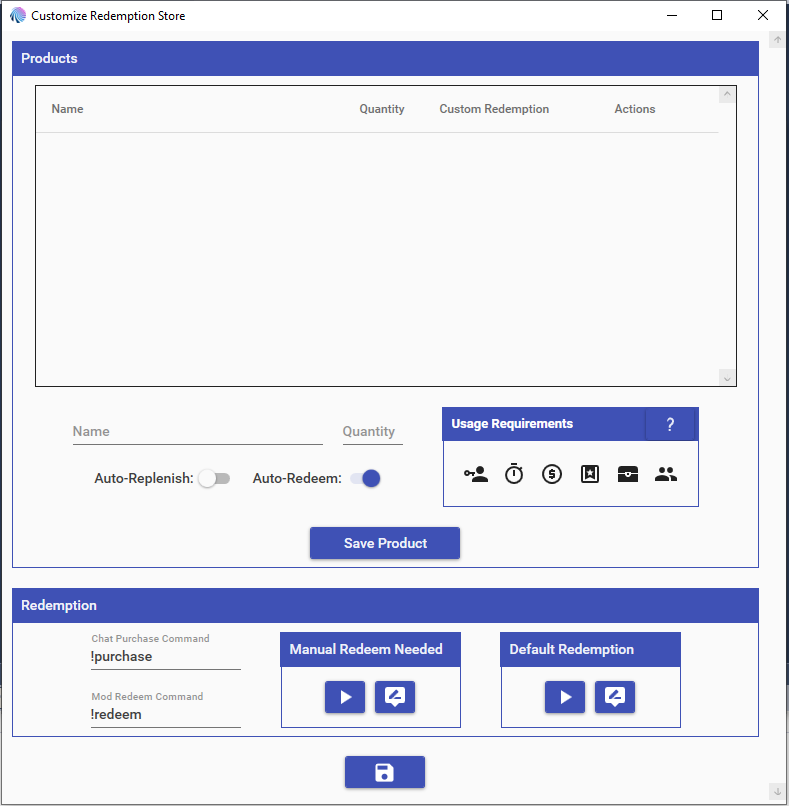
    Redemption Store Details

    When configuring products, you are able to define the following values for it:

    • The display name
    • The quantity, if any. Leaving blank will mean it has infinite quantity
    • Whether the quantity should be auto-replenished to the defined amount every time Mix It Up is launched
    • Whether the product should be auto-redeemed when it is purchased
    • The requirements needed to purchase the product

    When a product has been saved, by default, it will trigger the “Default Redemption” command when it’s purchased. However, you can set up a custom command that is instead triggered when that product is purchased by clicking on the “Add Command” button next to that specific product.

    Once you have saved all of your products to your liking, click the Save button at the very bottom of the window to have all your information saved for the entire Redemption Store.

    Purchasing Products

    To purchase a product, users run the purchase command in chat and supply the name of the product as the arguments. Supplying no arguments when running the purchase command will list out all products that are available for purchase and have remaining quantity. When a product is purchased, one of two scenarios will happen:

    • If the product is set to auto-redeem, either the custom redemption command for the product or the default redemption command will be run automatically
    • If the product is NOT set to auto-redeem, then the Manual Redemption Needed command will run to alert you and your moderators that the purchase occurred and must be redeemed.

    When you or a moderator runs the redeem command, there are one of two options:

    • If you specify the name of the product as the arguments, it will redeem the oldest purchase of that product that has not been redeemed yet
    • If you specify the name of a user as the arguments, it will redeem the oldest purchase that the user has made that has not been redeemed yet

    For all commands that are triggered via the Redemption Store, the following Special Identifiers can be used in them:

    • $productname = The name of the product being purchased/redeemed

    Choose which cookies to allow. Your preference is saved for 6 months.

    Necessary
    Required for the site to function correctly. Cannot be disabled.
    Analytics
    Helps us understand how visitors use the site. No personal data is shared with third parties.